How to set up your Google Business Profile
Your profile can show your hours, phone, photos and reviews on Google Search and Maps. Here are the steps, the ways to verify and what to fill in.
Your Google Business Profile is the listing that can show your name, hours, phone, photos and reviews on Google Search and Maps. It is free, and for a local business it is one of the most useful things you can set up. This lesson covers the steps to claim and verify it, the ways Google can verify you, and what to fill in so the profile and your website say the same thing.
What a Business Profile is, and who can have one
A Business Profile is the box of information that can appear when someone searches for your business name, or for a service near them. It can show your address, your hours, a link to your website, photos, and the reviews people have left. Customers use it to decide, and to call or get directions without visiting your site first.
Google's guidelines are written for businesses that deal with customers in person, either at their location or by traveling to them. A business that only works online does not fit. If you travel to your customers, you can serve them without sending them to an address, as lesson 6-5 explained.
Google adds that complete and accurate information makes a business more likely to appear in local results, and that verifying the profile tells Google you are allowed to represent the business. That is why this lesson has two parts: getting verified, and filling in the profile well.
Before you start
Have these ready, so you do not stop in the middle.
- A Google Account. Google says you need one to sign up for a Business Profile, and that it does not have to be a Gmail address. Use an account that belongs to the business owner, not to a freelancer or an employee who may leave.
- Your business name, exactly as customers know it. The one on your sign, your invoices and your website.
- Your address, or the areas you serve.
- Your phone number and website.
- Your hours, including special hours for holidays.
- A few good photos. The outside of your place, the inside, your team and your work.
- A way to verify. A phone that can receive a call or a text, access to your email, or a mailbox where a postcard can arrive.
The steps
Google changes its screens from time to time, so the buttons may look a little different from the descriptions below. The order stays the same.
- Sign in with the Google Account you chose.
- Search for your business by name and city. Google also suggests trying "my business".
- Add it or claim it. If your business is not on Google, add it. If it is already there and nobody has claimed it, claim it. Do not create a second listing for the same business.
- Open business.google.com and select Get verified.
- Pick one of the methods Google offers you. You cannot choose a method that is not on your screen. Google decides which ones to offer.
- Complete that method. The next section explains each one.
- Wait for the review. Google says verification reviews take up to five business days, and rarely more.
The ways Google can verify you
Google says the options you see depend on your business type, public information, region and business hours. It chooses them automatically, you cannot change them, and in some cases it may ask for two or more. Here are the ones Google lists.
Phone or text
Google sends a code by call or text message. You need to be able to take a call on the business line or receive a text. An automated phone menu cannot receive the code, so a business with only a menu line should check this first.
Google sends instructions by email. You need access to the address shown on the verification screen, and you follow the steps in the message.
Live video call
You start with a text chat, then have a video call with a Google support representative. Google says this option may not be available for every business, and that calls are only possible during the business hours of your location. Be at your business, with a device that can handle video, and be ready to show where you are and that you own the business.
Postcard
Google mails a code to your address, and you type the code into your profile. It is not offered to every business. Google says most codes arrive within 14 days, and that a code expires after 30 days. While you wait, do not change the business name, address or category, and do not ask for a second code, because that cancels the first one.
Video recording
For some businesses, verification is done with a recorded video. Google links to a separate guide with the details, and says that if your business is eligible for video verification, it recommends this option.
Instant verification
Google also notes that some businesses are verified right away, for example when the website is verified through Google Search Console. Whether that is offered to you is up to Google.
After you are verified: fill in the profile
A verified profile with empty fields is a missed chance. Google says complete and accurate information helps customers and helps you appear in results. Go through each part.
Name and categories
Use your real business name, the one customers see on your sign and your invoices. Do not add keywords, a city or a slogan to the name to look better. Google's guidelines ask for the real name, and a profile that breaks the rules can face restrictions. Choose the category that best describes your main business, and add others only if they are true.
Address or service area, phone and website
Enter your address if customers visit you, or the areas you serve if you travel to them. Add one main phone number and your website. Use the same format you use on the website, as lesson 6-5 explained.
Hours, including special hours
Google lists business hours, including special hours, among the details to keep current. Set your regular hours and update them before every holiday. A customer who arrives at a closed door is the kind of problem a profile should prevent.
Services, products and description
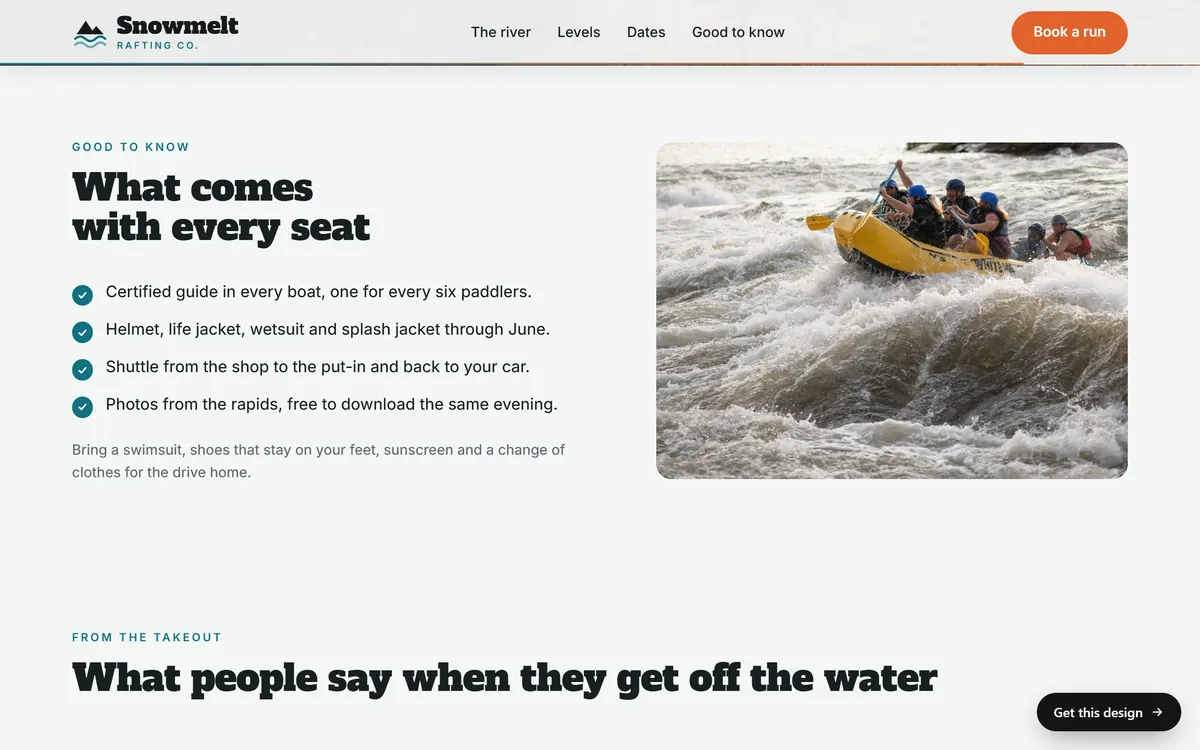
If the profile offers fields for services or products, fill them in with the same words as your website. Write a short description in plain language: what you do, who for, and where. Use the words your customers use, as lesson 6-3 showed. The list of what is included in an offer is a good model. The Snowmelt page below lists what comes with every seat, in a few short lines, and the same facts would work well in a profile.
A simple template for the description: what you do, for whom and where, then one fact that sets you apart, then how to reach you. For a made-up family dentist it could read: "Family dentist in Tampa. Cleanings, fillings and emergency visits for kids and adults. Open Saturdays. Call or book online." Every word is plain, and every claim is one you can keep.
Photos and videos
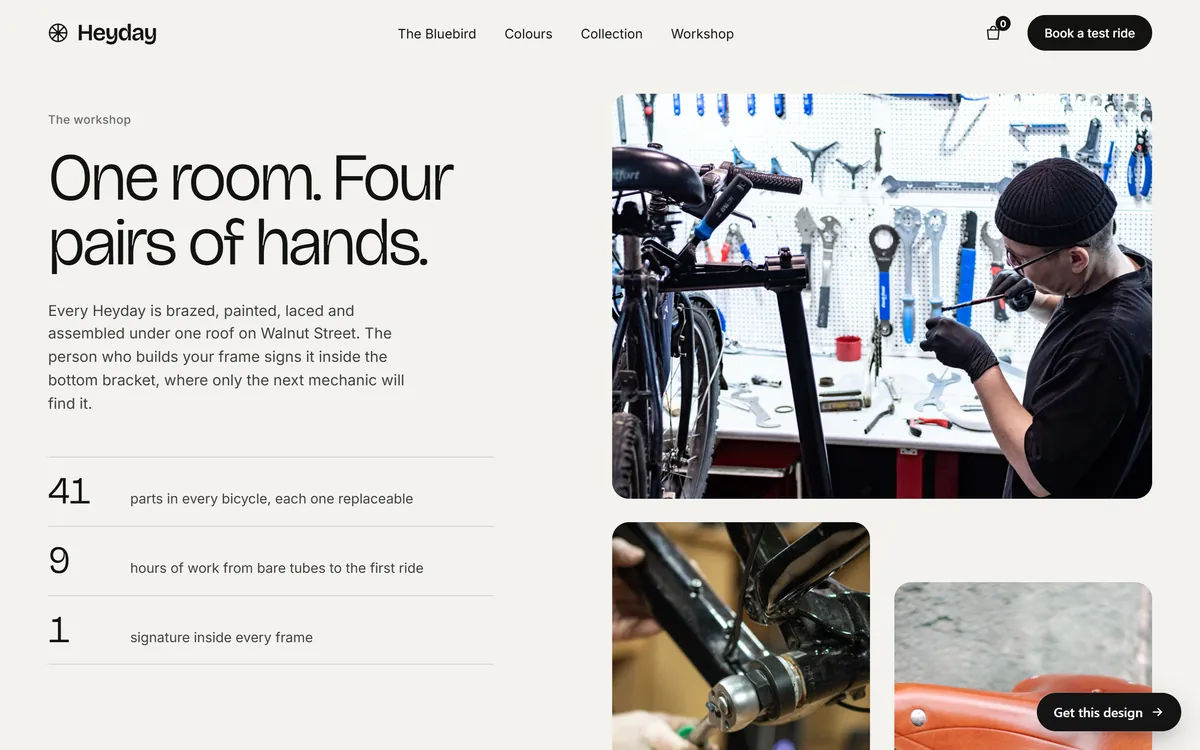
Google says photos and videos help show customers what you offer. Use real ones: your place, your team, your work. Avoid stock images. The Heyday workshop section shows the kind of photo that tells a customer who is behind the business.
Reviews
Customers can leave reviews on your profile, and you can reply. Google describes replies as public and as a good way to build relationships. Lesson 6-7 covers how to ask for reviews and how to answer them.
Keep the profile and your website in agreement
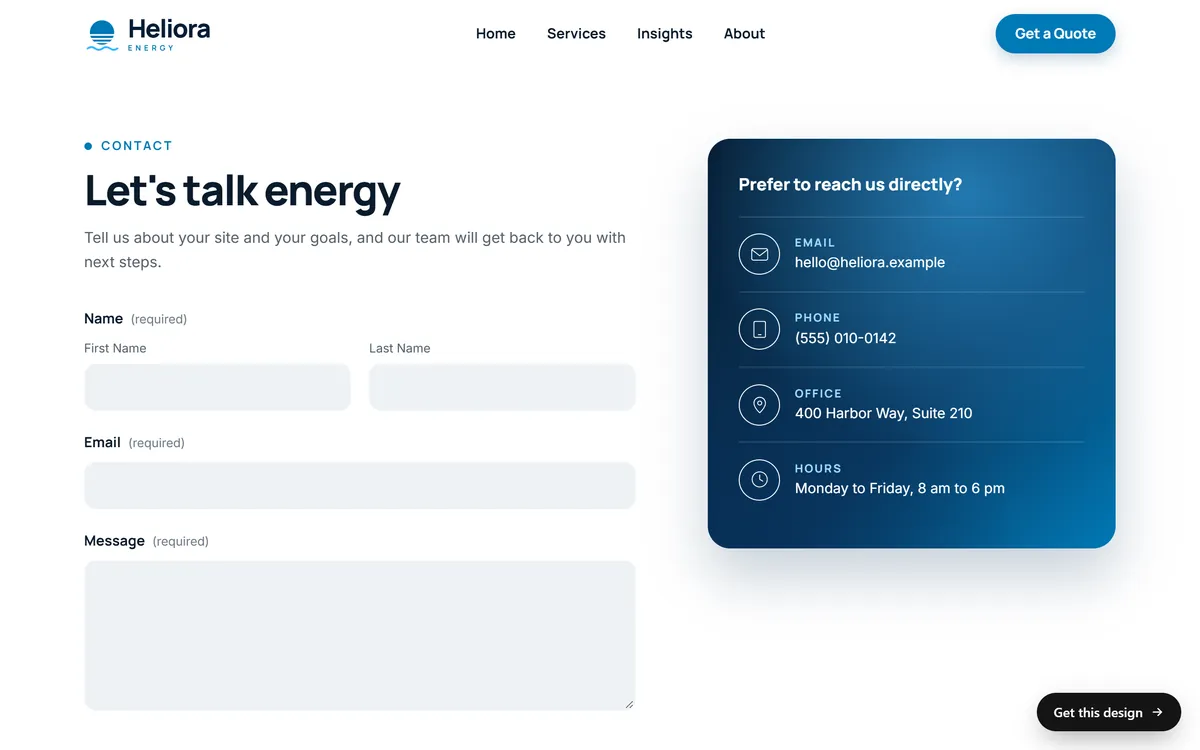
Your profile and your website tell the same story to the same customers. Check that the business name, address, phone, hours, website link and main services are identical in both. A contact page like the Heliora Energy one below, with the email, phone, office address and hours in plain text, makes the check easy.
A monthly routine
- Reply to new reviews.
- Check that your hours are right for the coming month, including holidays.
- Add a few new photos.
- Look at the profile's numbers, such as calls and direction requests, and write them down.
- Search for your business as a customer would and make sure everything shows correctly.
Common problems
- The verification option you want is not offered. Google chooses the methods. Try again later, check that your information is accurate, and use the options on the screen.
- The postcard does not arrive. Wait the 14 days Google mentions, make sure the address is correct, and request a new code only if the first one has failed, remembering that a new request cancels the old one.
- Someone else claimed your business. Look in Google's Business Profile help pages for how to contact Google about it. Do not create a duplicate.
- The profile shows wrong information. Update it from your account, and check the details on the other sites that list you.
Mistakes to avoid
- Creating a second profile for the same business. Duplicates confuse customers and Google. Claim the one that exists.
- Using a fake address or a borrowed one. It breaks the guidelines and can put the whole profile at risk.
- Stuffing the business name. "Best Plumber Tampa Cheap" is not your name.
- Leaving hours wrong. Outdated hours cost you customers and reviews.
- Using only stock photos. People want to see the real place and the real team.
- Ignoring reviews. A reply is public, and every future customer can read it.
- Letting one person hold the only login. Keep access with the owner of the business, and write down who has it.
- Changing the name, address or category while a postcard is on its way. Google warns against it.
Your Business Profile and your website
Every site we build includes SEO setup, hosting, a mobile version, contact forms and texts written for your business. If you want help managing your profile, Google Business management is a monthly service you can add. When you are ready, you can start your site.
Questions people ask
How do I set up a Google Business Profile?
Sign in with a Google Account, search for your business by name and city, add it or claim it, open business.google.com, select Get verified and complete one of the methods Google offers. Then fill in the details.
Is a Google Business Profile free?
Yes. Creating and managing one costs nothing. Be careful with anyone who asks you to pay to be listed or verified.
How do I verify my business on Google?
Choose one of the options Google offers on your screen: phone or text, email, live video call, postcard or video recording. Which ones you see depends on your business type, public information, region and business hours.
How long does verification take?
Google says reviews take up to five business days after you finish a method. A postcard code usually arrives within 14 days and expires after 30.
Why can't I see the verification option I want?
Google decides which methods to offer, and you cannot change that. Some options, such as live video or postcard, are not available for all businesses.
Do I need a website to have a Business Profile?
The profile can link to a website, and a site gives customers more detail than a profile can. A site also helps Google understand your business. Keep the details on both identical.
Can I have a profile without a storefront?
If you serve customers in person by traveling to them, you can list the areas you serve instead of showing a public address. A business that only works online does not fit Google's guidelines.
Can I use a different name on my profile?
Use the name customers see in the real world. Adding keywords or slogans to the name can get the profile suspended.
Why is my profile information wrong?
Details can come from your own entries, from other websites or from customers' suggestions. Update the profile from your account and fix the same details on other sites.
How often should I update my profile?
Whenever something changes, such as hours, phone or services, and once a month for a quick check, with new photos and replies to reviews.
Want a website that does all of this? Start your site