Free tools to check your website
You do not need paid software to see how your site is doing. Meet the free tools worth using, and a simple monthly checkup you can do yourself.
You do not need paid software to see how your website is doing. A handful of free tools, most of them from Google, show whether Google can find your pages, what people search to reach you, how fast your site loads and how customers use your profile. This lesson names those tools, explains what each one is for and ends with a twenty-minute monthly checkup you can do yourself.
What you want to know, and which free tool answers it
- Is Google finding and indexing my pages? Google Search Console.
- What do people search before they click my site? Google Search Console, in the Performance report.
- Is my site fast enough? PageSpeed Insights, or Lighthouse in the Chrome browser.
- Does my site work well on a phone? PageSpeed Insights, Chrome's device view and your own phone.
- Is my structured data correct? The Rich Results Test, or the Schema Markup Validator.
- Who visits, and what do they do? Google Analytics.
- How do customers find and contact my business on Google? The performance numbers in your Google Business Profile.
- What are people searching for in my trade? Google Trends and the Keyword Planner.
- Is my site easy to use for everyone? The accessibility check in Lighthouse and the WAVE browser extension.
- Do my forms and buttons work? Your own phone, and a few minutes of testing.
Google Search Console
Search Console is the most useful free tool you can have. It is where Google tells you how it sees your site. Set it up first, because it starts collecting information about your site only after you add and verify it, so every week you wait is a week of data you will not have.
How to set it up
- Sign in to Search Console with the Google Account you use for the business.
- Add your site. Choose the option that covers your whole domain if it is offered.
- Verify that you own it. Search Console offers several ways, such as adding a small record to your domain settings or a tag to your site. If someone else built your site, ask them to do it or to give you access.
- Send your sitemap, the list of pages from lesson 6-1.
- Check which email address receives the alerts.
The reports worth knowing
- Performance. It shows the searches that displayed your site, how many times (impressions), how many clicks and the average position. Filter by page to see the searches for a single page. This is the report behind the advice in lessons 6-3 and 6-4.
- Pages (indexing). It shows which pages Google has indexed and gives reasons for the ones it has not.
- URL Inspection. Paste the address of one page to see how Google sees it, and whether it can be indexed.
- Sitemaps. It shows the sitemap you sent and whether Google could read it.
- Alerts. When Google finds a serious problem, it emails you. Do not ignore those messages.
How to read the Performance report
Four columns tell the story: clicks, impressions, click rate and average position. Read them in pairs.
- Many impressions, few clicks. People see your page but do not choose it. Improve the title and the description, as lesson 6-4 explains.
- Clicks, but no calls or messages. People arrive and do not act. Check the first screen, the phone number and the next step on the page.
- A page that shows no impressions at all. Check in the Pages report whether it is indexed, and whether anything links to it.
- A search you did not expect. Add a section for it, or a short answer, if it fits your business.
PageSpeed Insights and Lighthouse
PageSpeed Insights is free. Paste a page address, and it analyzes the page for phones and for computers. It reports how fast the page appears, how soon people can use it and whether things jump around while it loads. Where Google has enough data from real visitors, it shows that too. For each issue, it explains what to improve.
Lighthouse is the same kind of test, built into the Chrome browser. Open the developer tools, find the Lighthouse tab and run it on any page you can open. It also checks accessibility, good practices and basic SEO.
The pages that need the closest look are the ones full of large photos and animation. The Fielden lookbook below shows several big images side by side. That is beautiful, and it is exactly the kind of page where a speed test tells you whether the images are too heavy.

How to read the results
- Start with the mobile report. Many people search on a phone.
- Look for green, orange and red. Fix the reds first, starting with the one that explains the most delay.
- Expect the numbers to move. Run the test two or three times, and compare the same page over time.
- Do not chase a perfect score. A site that loads fast for real people on real phones is the goal.
The most common fix is lighter images: smaller files, in a modern format, shown at the size people actually see. If your site is built by a studio, send them the report.
You may find old articles that mention a Mobile-Friendly Test from Google. Google has retired that tool, so use the tools above and your own phone.
Your Business Profile numbers
Your Google Business Profile shows how customers found and contacted you, including calls, direction requests and website clicks. Look at it once a month. If calls go up after you changed your hours or added photos, you learn what works. If they fall, you can check your hours, your reviews and your categories.
Google Analytics
Search Console shows how Google sees your site. Google Analytics shows what visitors do once they arrive: which pages they open, where they come from and which actions they take, such as pressing the call button or sending a form. It is free, and it needs a small piece of code on your site. If you use it, mention it in your privacy policy, and read series 10 for the basics of analytics and privacy.
The Rich Results Test and the Schema Markup Validator
If your site includes structured data, which is code that describes things like your business, your products or your events in a form made for search engines, you can test it. Google's Rich Results Test shows which types of structured data it found on a page and whether any are eligible for a rich display. The Schema Markup Validator checks structured data against the shared schema.org vocabulary. Passing a test does not guarantee a special display in results. Google decides that case by case, and its guidance is that the markup must match what is visible on the page.
Google Trends and the Keyword Planner
Google Trends is free and shows how interest in a phrase changes over time and by place. The Keyword Planner is free to use with a Google Ads account and suggests related phrases. Lesson 6-3 explains both. Use them before you write a page, not only after.
Other free checks
- Bing Webmaster Tools. The free counterpart of Search Console for Bing.
- WAVE. A free browser extension that flags accessibility problems, such as images without descriptions and weak color contrast.
- Google Alerts. A free service that emails you when your business name appears in new pages.
- The site: search. Type site:yourbusiness.com into Google to see the pages it has.
- Free site crawlers. Several tools can scan a small site for broken links, missing titles and repeated descriptions. The free versions usually limit how many pages they check.
- Your own phone. The best test of all. Open your site on a real phone, on mobile data, not only on Wi-Fi.
Test what tools cannot see
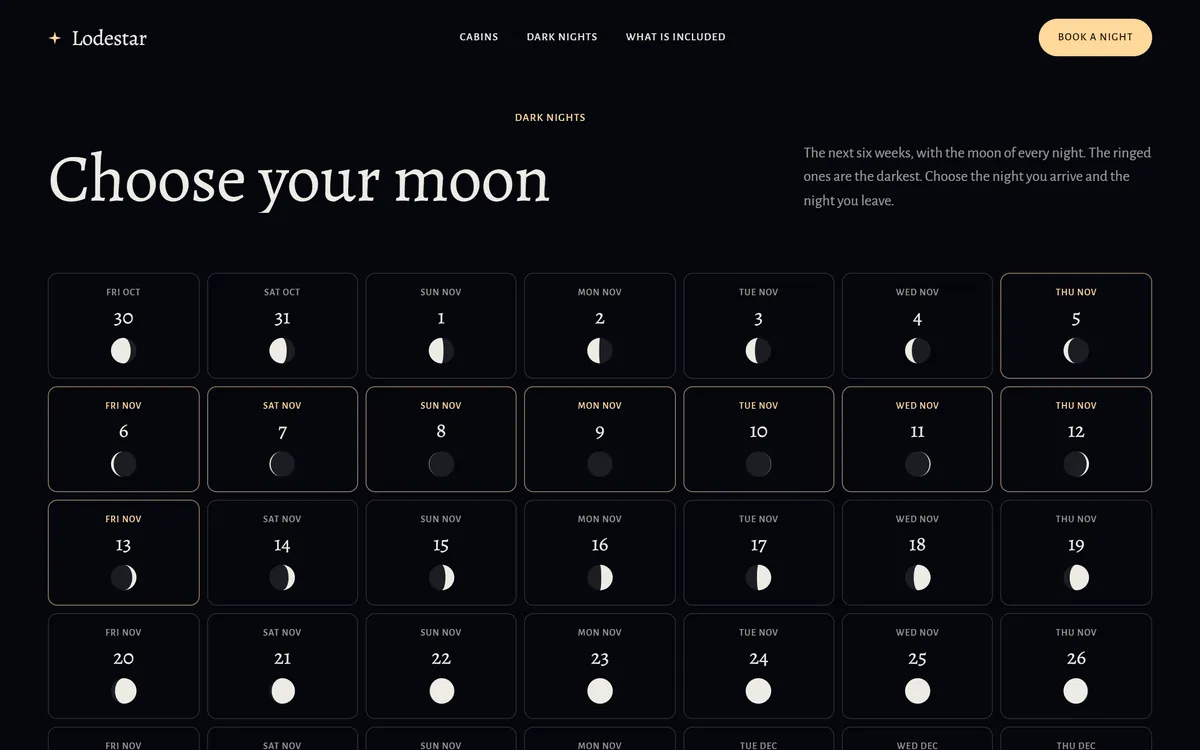
Tools can tell you that a page loads. They cannot tell you whether the booking calendar is easy to use or whether the form really sends. Test them yourself, on your phone, after every change. The Lodestar calendar below is the kind of feature to try by hand: pick a night, check the next screen and send a test message.
What to do when a tool finds a problem
- A page is not indexed. Read the reason in Search Console. Common causes are a rule that blocks Google, a tag that says not to index the page, a duplicate of another page or content with too little to offer.
- The page is slow. Start with the images, then ask your studio or host about the rest.
- A title or description is missing or repeated. Write a unique one, as lesson 6-4 explains.
- A link is broken. Fix the link or point the old address to a related page.
- Structured data has an error. Fix it so it matches the page, or ask the person who added it.
Fix one thing at a time, and write down the date. A short log of changes is the cheapest way to learn what works for your site.
A twenty-minute monthly checkup
- Search Console, Performance. Compare the last month with the one before. Note impressions, clicks and the top searches.
- Search Console, Pages. See whether any new page is not indexed, and read the reason.
- PageSpeed Insights. Test your home page and your most visited page on mobile.
- Business Profile. Write down calls, direction requests and website clicks. Reply to new reviews.
- Your own search. Search your business name and your main service plus your city, on your phone.
- Your forms and buttons. Send one test message and check that you receive it.
- Write three lines. What changed, what you think caused it and what you will do next.
How to read the numbers without panic
- Compare equal periods. A month against the month before, or against the same month last year.
- Look for trends over several months. One bad week is usually noise.
- Do not judge a change too soon. Google suggests waiting a few weeks.
- Small numbers jump around. Ten clicks becoming fifteen is not a revolution.
- Average position is an average. It mixes many searches, places and devices.
What these tools cannot tell you
They cannot tell you whether customers liked the experience, or why someone who visited did not call. Ask. A simple question to new customers, "How did you find us?", gives you information no tool does.
Mistakes to avoid
- Setting up the tools and never opening them. A monthly habit beats a perfect setup.
- Checking every day. It leads to hasty changes.
- Chasing a perfect score. Aim for a fast, usable site.
- Making many changes at once. You will not know what worked.
- Ignoring alerts. A warning from Search Console is worth reading the same day.
- Leaving the only login with one person. Make sure the owner of the business has access.
Free tools and your website
Every site we build includes SEO setup, and each site is built and checked on days 5 and 6, before it goes online on day 7. After launch, the checkup above shows how it is doing. If you want help managing your Google Business Profile, Google Business management is a monthly service you can add. When you are ready, you can start your site.
Questions people ask
What free tools can I use to check my website?
Google Search Console, PageSpeed Insights, Lighthouse in Chrome, the Rich Results Test, Google Analytics, the performance numbers in your Business Profile, Google Trends and your own phone. Bing Webmaster Tools and WAVE are good extras.
Which tool should I set up first?
Google Search Console. It starts collecting information once your site is added and verified, and it shows how Google sees your pages.
What is the difference between Search Console and Google Analytics?
Search Console shows how Google finds and displays your site and the searches that bring people. Analytics shows what visitors do after they arrive.
How do I check my website speed for free?
Paste your page address into PageSpeed Insights, or run Lighthouse in Chrome. Start with the mobile report and fix the biggest issues first.
How do I know if Google has indexed my pages?
Use the Pages report and the URL Inspection tool in Search Console, or type site:yourbusiness.com into Google.
Is there a free tool to test my site on a phone?
Yes. PageSpeed Insights reports on mobile, Chrome has a device view in its developer tools, and your own phone is the best test. Google has retired its separate Mobile-Friendly Test.
Are free SEO tools accurate?
The ones from Google show Google's own data, which is the most reliable. Estimates of search volume and any score from a third-party tool are rough guides, so use them to compare, not to promise.
How often should I check my website?
Once a month for a full checkup, and right after any big change. Alerts from Search Console are worth a look as soon as they arrive.
Do I need to know code to use these tools?
No. You read the reports, and your web team or studio can make the fixes. Some setup steps, such as verifying ownership, may need a little help from whoever manages your site.
What should I do with the results?
Pick one or two fixes that matter most, make them, and check again next month. Write down what you changed, so you can see what worked.
Want a website that does all of this? Start your site