Video on your website: when it helps and when it hurts
A short video can show what text cannot, but it can also slow the page and hide your message. Here is how to use video so it adds to the page.
A short video can show in half a minute what a page of text cannot: how a place feels, how a service works, how a product moves. It can also slow your site, eat a visitor's mobile data, play sound at the wrong moment and hide the words people came to read. This lesson explains when video helps a small business website, when it hurts, and how to use it so that it adds to the page instead of weighing it down.
What video can do that text and photos cannot
Motion carries information that stays flat in a photo. A visitor can see the river moving, the dough being shaped or the technician arriving in a clean uniform. Video also shows a person talking, and a face and a voice build trust faster than a paragraph does.
Video helps most in these cases:
- Experiences. Tours, lodges, restaurants, events and classes, where the feeling is part of what you sell.
- Products that move or change. Anything where the visitor wants to see it in use.
- Services that are hard to picture. A few clips of how your process works can remove doubts.
- People businesses. Consultants, coaches, therapists and teachers, where meeting the person first matters.
- Testimonials. A customer talking in their own words is more believable than a quote.
Not every business needs video. A strong set of photos and clear text beats a poor video every time. Add video when you have something worth showing, not because websites are supposed to have it.
Five ways businesses use video
1. A silent background loop
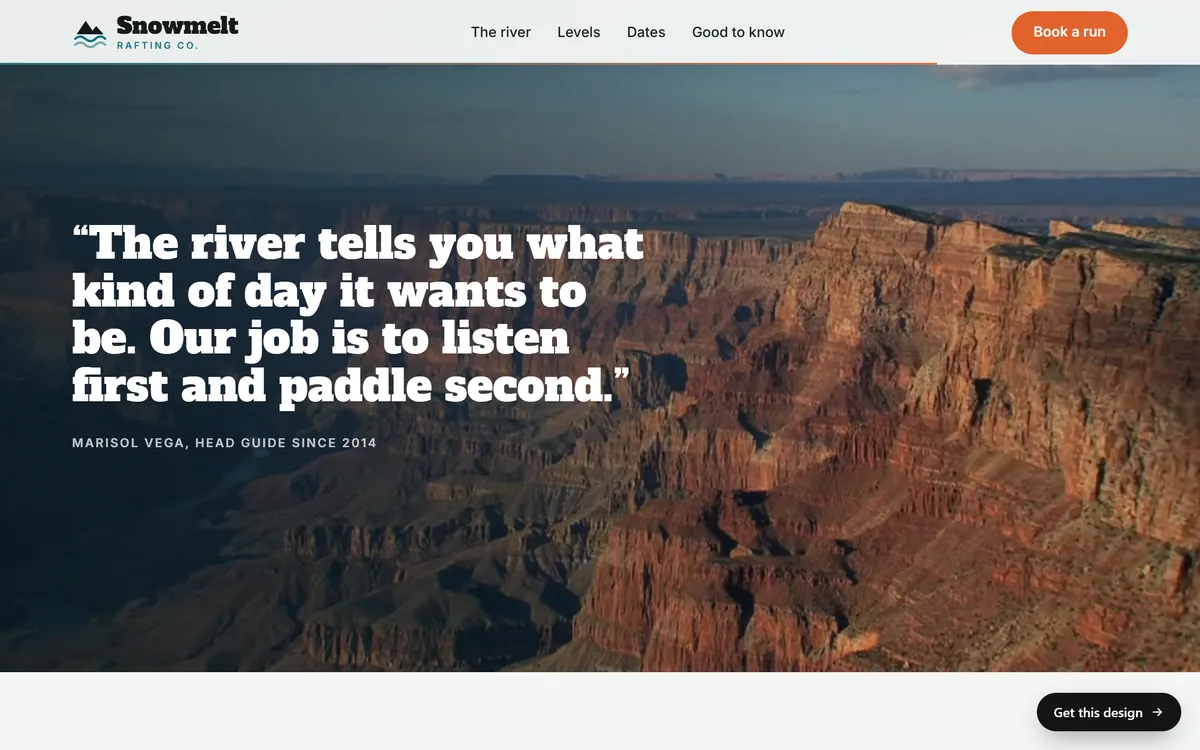
A short clip that plays on repeat behind a headline, with no sound and no controls. It sets the mood in the first seconds. The Snowmelt design below uses full-width canyon footage behind a quote. The words stay on top, and the video adds movement without asking the visitor to do anything.
2. A video that shows the work
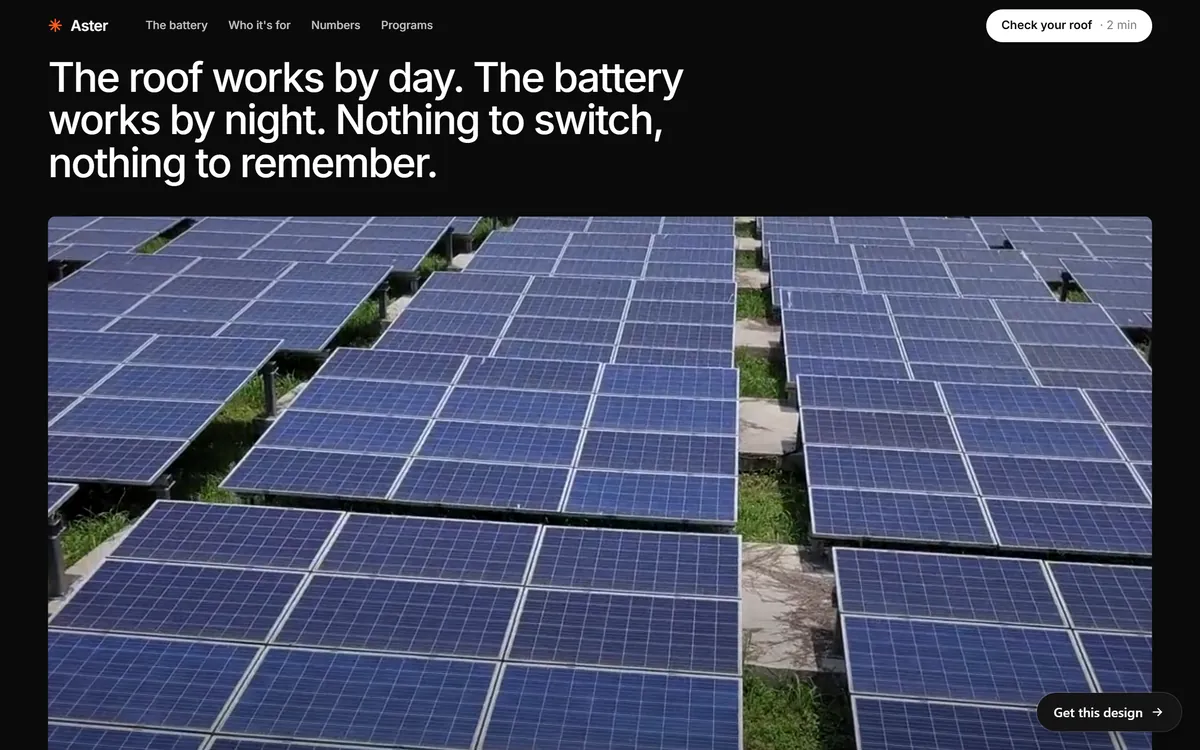
A clip placed in the page, below a clear heading, shows the real thing. In the Aster design, a wide video of rows of solar panels sits under a short heading that explains what the viewer is looking at. The words tell the story, and the video proves it.
3. An introduction or explainer
A video of you or your team, thirty to sixty seconds long, with controls. It says who you are, what you do and what happens when someone contacts you. It works well on an About page or beside a contact form. Use it when a face and a voice make the difference.
4. A product or service demonstration
Show how something works, step by step: opening the product, cleaning a surface, assembling a piece. Keep it short, speak clearly and add captions.
5. A customer testimonial
A real customer, in their own words, for twenty to forty seconds. Ask for permission in writing, and ask them to talk about the problem they had and what changed.
A quick test to decide if a page needs video
Before you plan a video, answer these five questions honestly.
- Is there something visitors need to see in motion, or would a photo do the same job?
- Can I make it look good, with steady camera, clear sound and decent light?
- Can I keep it short and light enough to load quickly on a phone?
- Does the page still make sense if the video does not load or is never played?
- Will I keep it up to date when my prices, team or place change?
If the answer to the first question is no, skip the video for now and invest in photos and clear text. If the answer to the fourth is no, fix the page first so that its words carry the message, and add the video afterward as a bonus. If you answered yes to most of them, a short clip is worth making.
When video hurts
Video is the heaviest thing you can put on a page. These are the usual problems.
- It slows the page. A large video file can double the loading time, and a slow page loses visitors before they read a word.
- It eats mobile data. Someone on a limited plan will not thank you for an autoplaying clip.
- It plays sound unexpectedly. A sudden voice in a quiet room makes people close the tab.
- It hides the message. A busy background can make your headline hard to read, and a long intro can delay the content.
- It has no captions. Many people watch with the sound off, and some cannot hear at all.
- It holds the only copy of important information. Prices, hours and addresses belong in text, where search engines and screen readers can find them.
- It looks amateur. A shaky, dark or noisy video harms the impression more than having no video.
Autoplay, sound and controls
These rules protect your visitors, and following them also protects you.
- Silent loops are the only autoplay that works reliably. Most browsers block videos that try to start with sound, and allow silent autoplay. Let visitors choose to turn sound on. The Eclore design below puts a Click for sound button in its header, so nothing plays aloud unless the visitor decides.
- Give a way to pause. The accessibility guidelines called WCAG say that moving content that starts by itself, lasts more than five seconds and sits beside other content needs a way to pause, stop or hide it. A small pause button is enough.
- Control audio. If sound plays automatically for more than three seconds, the same guidelines ask for a way to pause it or lower the volume. The simplest solution is not to play sound on its own.
- Add captions. The guidelines ask for captions on prerecorded videos with sound. Captions also help people in noisy places and people who watch without sound.

Keep your video light
- Keep it short. A background loop of 5 to 15 seconds is plenty. An introduction should be under a minute.
- Compress it. A file in the MP4 format, encoded with H.264, plays almost everywhere and compresses well. As a rule of thumb, keep a background loop to a few megabytes.
- Do not use more resolution than you need. Full HD is enough for a full-width background. Smaller clips can be much smaller.
- Remove the sound track from silent loops. It adds weight and does nothing.
- Add a poster image. A still picture, usually the first frame, appears while the video loads, so the page never looks empty.
- Load it only when needed. A video far down the page should wait until the visitor scrolls near it.
- Think about phones. On a phone, a still picture can replace a background loop. People who ask their device to reduce motion should also see a still picture.
Where to host the video
You have two options. You can put the file on your own hosting, which gives you full control of how it looks and loads, but you need to prepare the file well. Or you can embed a video from a video platform, which is easy to set up and handles different connections for you, but it loads extra code from another company, can show suggested videos after yours ends and gives you less control over the page. For background loops and short clips, your own hosting is usually the better choice. For longer videos, a platform embed is practical, ideally one that loads only when the visitor presses play.
Where video belongs on the page
Put video where it supports the main message. A background loop belongs on the first screen or on a section that carries a short statement. A longer video belongs lower on the page, with a clear heading above it and a play button on its poster. Use one video per page unless there is a good reason. Do not let a video push your main button off the first screen, and do not let it start before the headline loads. When words sit on top of a video, make sure they stay readable: use a dark layer behind them, large letters and a calm part of the picture.
How to shoot a simple video with your phone
- Plan three shots. A wide shot of the place, a medium shot of you or the work, and a close-up of a detail.
- Shoot horizontally for your website, and vertically if the clip is for social media.
- Hold steady. Use a tripod, or rest the phone on a stack of books.
- Use daylight. Face a window instead of standing in front of one.
- Get close to the sound. In a quiet room, stand near the phone and speak clearly. A small clip-on microphone helps a lot.
- Write three lines first. Who you are, what you do for customers and what to do next.
- Keep it short. Thirty to sixty seconds is enough for an introduction.
- Add captions. Many editing apps can create them, and you should read through them to correct mistakes.
Video, text and search engines
Search engines and screen readers cannot watch your video. They read the words around it. So write a short summary under each video that says what it shows, and, for a speaking video, add a transcript or a few key points. That text helps visitors who prefer to read, helps people who cannot play sound and gives search engines something to understand. Keep the important facts, such as prices, hours and the steps of your process, in text on the page. The video should add to those words, not replace them.
The same caution applies to social media. A feed of posts or videos pulled from your social accounts loads code from other companies, can slow the page and shows whatever you posted last, including things you would not choose to show a new customer. It is usually better to link to your profiles, or to embed one carefully chosen post.
A checklist before you publish a video
- It is short, and the first seconds show something worth watching
- The file is compressed and has a poster image
- It does not start with sound
- There is a way to pause anything that moves by itself
- It has captions, if it has speech
- Words on top of it stay readable
- The page works without it, on a phone, on mobile data
- A text summary sits near it, and the key facts are in text
How Good Sites Only uses video
Some of our designs use video, such as a silent loop behind a headline, and others use photos only. When you review the mockup on days 3 and 4, you can say which feeling suits your business. Your mobile version, contact forms, search engine setup and hosting are included. Look at how video appears in our designs before you decide.
Questions people ask
Should I put a video on my homepage?
Only if it helps the visitor and stays light. A short, silent background loop can set the mood, and an introduction video can build trust. If the video would slow the page or hide the message, use a strong photo instead.
Does video slow down a website?
It can, because video files are large. A short, well-compressed clip that loads only when needed has little effect, while a large file that starts at once can slow the whole page, especially on phones.
Should a website video autoplay?
Only a silent background loop should start by itself. Videos with sound should wait for the visitor to press play, because most browsers block them and visitors dislike surprise sound.
How long should a website video be?
Background loops work well at 5 to 15 seconds. Introductions and explainers are best at 30 to 60 seconds. Testimonials can run 20 to 40 seconds. Shorter is almost always better.
Where should I host my website video?
For short loops, use your own hosting so you control the file and the look. For longer videos, a video platform embed is practical, but it loads extra code and can show suggested videos, so choose settings that load it only when the visitor presses play.
Do website videos need captions?
Yes, whenever the video has speech or important sounds. Captions help people who cannot hear, people in noisy places and people who watch without sound. The accessibility guidelines also ask for them on prerecorded video with audio.
How do I add sound to a website video?
Let the visitor choose. Offer a clear button that turns the sound on, as in the Eclore example in this lesson. Do not make sound start by itself.
What is a background video?
It is a short clip that plays silently and on repeat behind other content, usually behind a headline. It sets the mood but should never carry essential information, and it needs a still picture as a fallback.
Can I use YouTube videos on my website?
Yes, an embedded video from a platform works, and it is easy to add. Remember that it loads extra code, may show suggested videos at the end and can affect speed. Check the privacy and display settings, and load it only when the visitor clicks.
What format is best for website video?
MP4 with H.264 encoding plays on almost every device and browser, so it is the safe choice. Newer formats can make files smaller, but you should always offer MP4 as a fallback.
Want a website that does all of this? Start your site