Your first Google Ads campaign
A first Search campaign takes an afternoon to set up and a few weeks to learn from. Follow the steps in the order Google shows them.
A first Google Ads Search campaign can be set up in an afternoon and then needs a few weeks to teach you something. This lesson walks through the steps in the order Google shows them: goal, campaign type, bidding, places, keywords, ads, budget and tracking. Google changes its screens often, so use this as a map and not as a script.
What you need before you open Google Ads
Gather these things first, and the setup will go much faster.
- A Google Account for the business. Use an email address you will still have next year.
- A page that matches your offer. Your ad needs a final URL, which is the page people land on after they click.
- One goal. Calls, forms, bookings or purchases, whichever matters most.
- A budget. The lesson on how much to spend on ads shows how to set one.
- A payment method. Google asks for billing details before your ads can run.
- A list of what you sell. You will turn it into keywords in a few minutes.
Why a Search campaign is a good first one
Google Ads has several campaign types, including Search, Display, Video and others that let Google's system choose more for you. For a first campaign, Search is the easiest to understand. You choose the words people type, you write the text, and you can see the real searches that triggered your ads. That makes it easier to learn what works, and easier to spot what does not.
Step 1: Choose a goal and the Search type
When you create a campaign, Google first asks you to pick a goal: Sales, Leads or Website traffic. You can also choose to create a campaign without a goal's guidance. The goal tells Google what you care about, and it changes the suggestions you see. Pick the one closest to the result you want.
Next, you choose the campaign type. Select Search, which shows text ads on Google's results pages. Then Google asks which conversion goals to use. A conversion goal is the action that counts as a result, such as a form submission or a phone call. If you have not set any up yet, plan to do it before you publish.
Step 2: Choose what Google should aim for
The bidding setting tells Google what to chase with your budget. Google offers a focus on conversions, clicks, conversion value or impression share. In plain words:
- Conversions. Google tries to get as many results as possible. This fits your goal, but it works well only when tracking is set up and some results have come in.
- Clicks. Google tries to get as many visits as possible for your budget. It is simpler, but it counts a visit that does nothing the same as one that calls you.
- Conversion value. Google tries to get the most value from results that carry a number, which suits online stores.
- Impression share. Google tries to show your ad more often. It is about being seen, not about results.
If your tracking is ready, a conversions focus matches what you want. If it is not ready, finish the tracking first. Read each option's description on screen, because Google adjusts them.
Step 3: Choose where your ads run
Networks
Google can show Search ads on its own results pages and, if you leave the box checked, on search partners, which are other search sites. It can also extend a campaign to the Display Network, which means other websites. Many beginners keep their first campaign to Google's own results pages so the budget goes to real searches. Look at each box before you publish.
Locations
Choose the places where your customers are, and exclude places you do not serve. A local business should not show ads across a whole state if it works in three cities. Google also has location options that refine targeting by how people relate to a place, for example people who are searching for your targeted locations. Read the descriptions and choose the one that matches your service area.
Languages
Choose the languages that match your ads and keywords. If you serve people in English and in Spanish, build a separate campaign or ad group for each language, with its own keywords, its own ads and a page in the same language.
Audiences and schedule
Audiences are optional. You can leave them out of a first campaign. The "show more settings" link also reveals an ad schedule. If nobody answers the phone at night, a schedule lets you run ads only during the hours you can respond.
Step 4: Group your keywords
Keywords are the words and phrases that can trigger your ad. Think of the exact words your customer would type, and group them by theme. Each group, which Google calls an ad group, gets its own ads and its own page.
Google offers Standard ad groups, where you choose the keywords and write the ads, and Dynamic ad groups, where Google uses your website to match searches and write the headlines. For a first campaign, Standard is easier to control. Type one keyword per line. Google's Keyword Planner, a free tool inside your account, can suggest more.
Match types in plain words
The match type controls how closely a search has to match your keyword. Here is an example for an imaginary mobile dog groomer in Tampa.
- Broad match. You type mobile dog grooming tampa with no symbols. Google can show your ad for searches it sees as related, even if the words differ.
- Phrase match. You put the words in quotation marks, like "mobile dog grooming". The search has to carry that meaning, with extra words allowed around it.
- Exact match. You put the words in brackets, like [mobile dog groomer tampa]. This is the tightest control.
Google says that a keyword with no symbols is treated as broad match. Match rules have loosened over the years, so check the search terms report often to see what people actually typed.
Negative keywords
A negative keyword tells Google not to show your ad for a word. You add it with a minus sign. The groomer might add -jobs, -school and -free, because people searching for a grooming job or a free class are not customers. Adding negative keywords is one of the cheapest ways to save money.
Step 5: Write your ad
You enter the final URL first, and it should be the page that matches the ad group. Then you write a responsive search ad. According to Google's help page, you can add up to 15 headlines of up to 30 characters each and up to 4 descriptions of up to 90 characters each, with a minimum of 3 headlines and 2 descriptions. Google tests combinations and shows the ones it predicts will work. These limits can change, so check the screen.
Because the pieces are mixed, every headline has to make sense on its own and next to any description. Here is a set for the imaginary groomer:
- Headline: Mobile Dog Grooming in Tampa
- Headline: We Come to Your Door
- Headline: Book Your Grooming Visit
- Headline: Gentle, Patient Groomers
- Description: A groomer comes to your home in a fully equipped van. See what is included, then book.
- Description: Serving Tampa neighborhoods. Tell us about your dog and pick a day that works for you.
Mix the kinds of headlines: one with the service and the place, one with the benefit, one with the action. Do not repeat the same phrase fifteen times. Pin a headline in place only when you must, because every pin gives Google fewer combinations to try.
Assets: the extras under your ad
Google calls the extras assets. Sitelink, callout and call assets are added by default, and you can add others such as a lead form or images. Sitelinks are extra links, such as Menu or Hours. Callouts are short phrases, such as "Open seven days." A call asset shows your phone number, so only use it if someone answers during the hours your ads run.
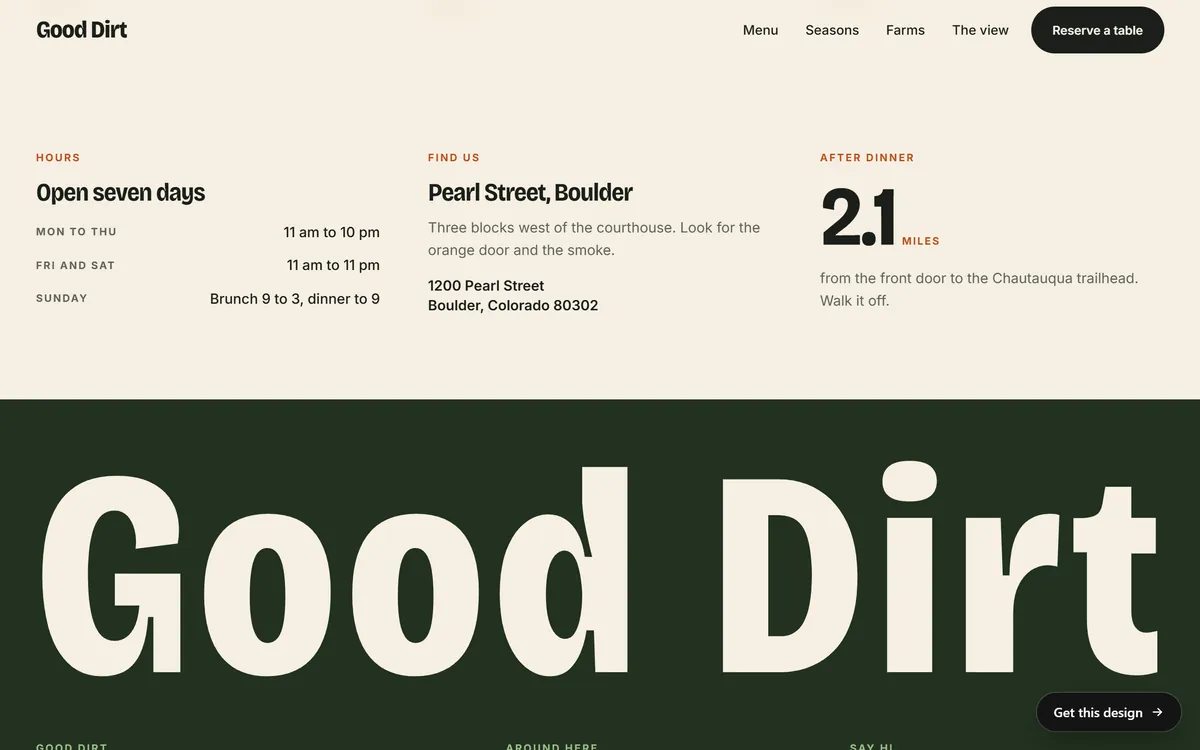
This section of a concept restaurant website shows the details that assets rely on: hours, a street address and directions. When a site states them clearly, it is easy to write assets that match.
Step 6: Set your budget
You can set an average daily budget or a total budget with a start and an end date. Google may suggest an amount based on similar campaigns, but you are the one who decides. Remember that a single day can cost up to twice the daily budget, while a month will not pass your daily budget times 30.4. If the budget is new to you, go back to the lesson on how much to spend.
Step 7: Check tracking, review and publish
Before you publish, set up conversion tracking. It tells Google when a call, a form or a purchase happens, and it is what lets the account learn. Google's help pages explain the options, and they usually involve placing a Google tag on your website or importing results from Google Analytics. The person who manages your site can help.
Google then lists any alerts, such as billing issues, missing keywords or ads, or an invalid final URL. Fix them and select Publish. Google reviews new ads before they run. Its help page says approval typically happens within a business day, that ads can take days to appear and that bidding can take longer to settle.
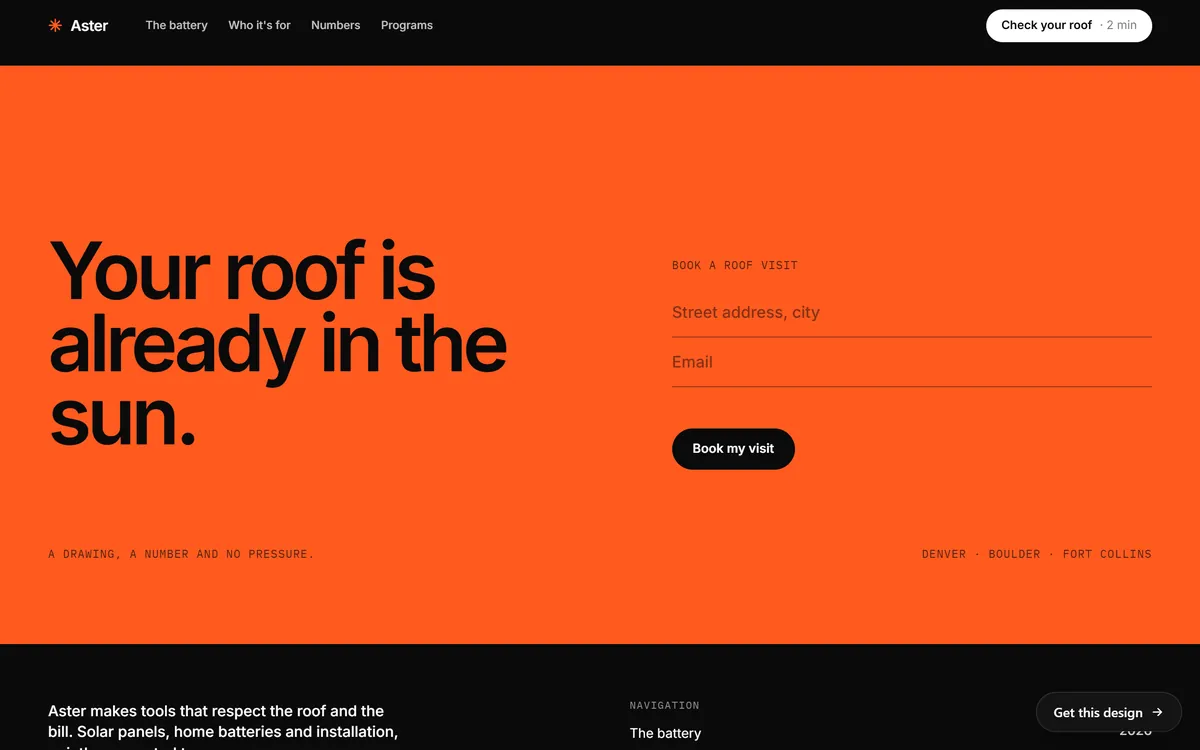
This is the kind of page that should sit behind a final URL. The headline matches a person who wants a roof visit, and the form asks only for an address and an email.
About credits: Google sometimes offers one to new advertisers. Check the current terms, and do not choose your budget because of it.
The first two weeks after you publish
- Day one. Check that your ads were approved and that your conversion tracking works. Click through your own ad path on a phone.
- Every few days. Open the search terms report. Add negative keywords for searches you do not want. Note which real searches look promising.
- Do not change everything. Make one change at a time, and write down what and when.
- After a few weeks. Look at results against your goal. The lesson on how to know if your ads work shows what to read.
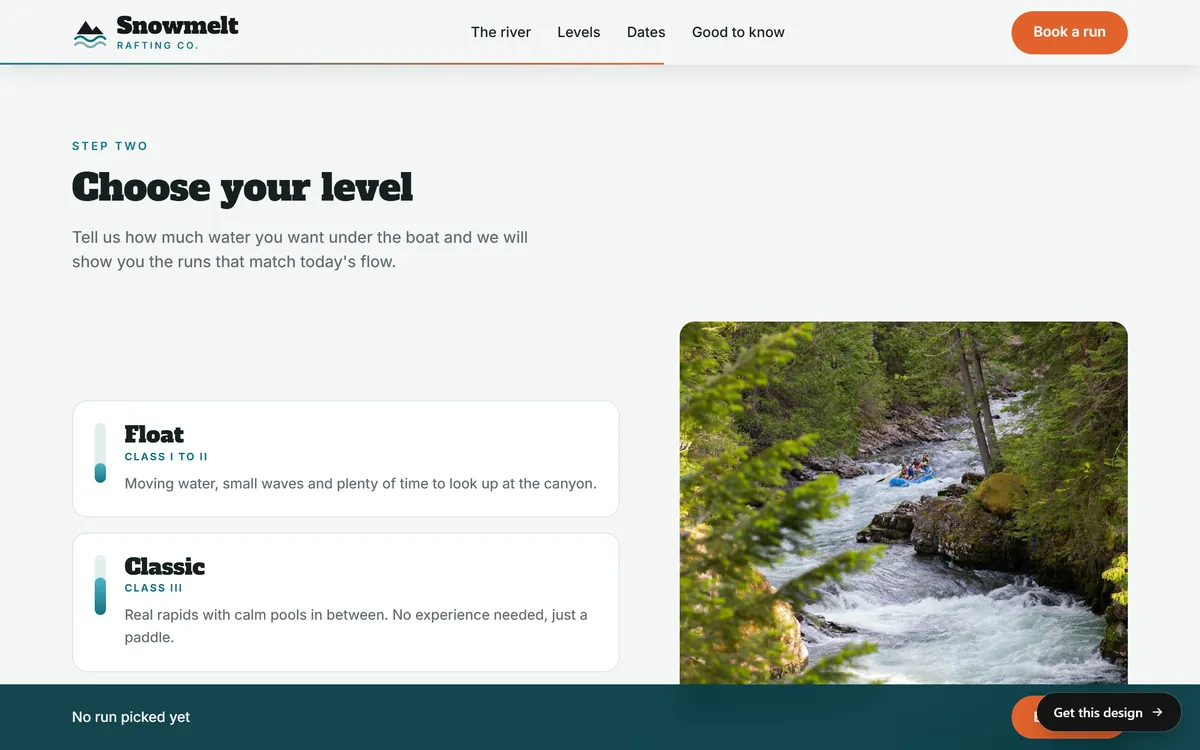
Pages like this one help when you build keyword groups. A rafting company can have a page for each level of river, so a search about a gentle family float can land on the page that answers it.
Your first campaign and your website
Each ad group needs a page it can point to. A site with a clear page for each service, texts written for your business, a mobile version and contact forms gives your keyword groups somewhere to land. Every site we build includes those parts. If you want a page made around one offer, a landing page of the month is a monthly service you can add. You can see how our pages look in our designs.
Questions people ask
How do I set up a Google Ads campaign for the first time?
Create or sign in to a Google Ads account, start a new campaign, choose a goal, choose Search, pick your bidding focus, set locations and languages, write your keywords and ads, set a budget, check your tracking and publish. The steps in this lesson follow that order.
How much does Google Ads cost for a small business?
You set the budget, so you decide. What each click costs depends on your industry and area. The lesson on how much to spend on ads shows how to work out a first budget and quotes named sources for cost per click.
What are keyword match types?
They control how closely a search must match your keyword. A keyword with no symbols is broad match, quotation marks make it phrase match and brackets make it exact match. Broad is the loosest and exact is the tightest.
What are negative keywords?
They are words that stop your ad from showing for certain searches. You add a minus sign before the word. They help you avoid paying for clicks from people who are not your customers.
How long does it take for Google Ads to be approved?
Google's help page says approval typically happens within a business day, though ads can take days to appear. If an ad is not approved, the account shows the reason so you can fix it.
Does Google give free credits to new advertisers?
Google sometimes offers one. Check the current terms in your account, and do not base your plan on a credit.
How many keywords should I start with?
Start with a small, focused list for each ad group, with words that mean nearly the same thing. A short list that matches your page is easier to learn from than a long list that does not.
Do I need a website for Google Ads?
Yes. Every ad needs a final URL, which is the page people reach after they click. That page should match the search and offer one clear next step.
Should I use Performance Max or Search for my first campaign?
Search is a simple first choice because you pick the keywords and see the searches. Other campaign types, such as Performance Max, give Google's system more control, so they are harder to learn from when you are new.
Can I pause or stop my campaign at any time?
Yes. You can pause a campaign whenever you want. Clicks that already happened are still billed.
Want a website that does all of this? Start your site