Your first Facebook and Instagram campaign
Facebook and Instagram ads are made in one place. Walk through the setup in the order Meta shows it and learn which settings matter most.
Facebook and Instagram ads are created in one place, Meta Ads Manager. A first campaign needs a Facebook Page or an Instagram professional account, one goal, one audience, a modest budget and a picture that stops a thumb. This lesson walks through the setup in the order Meta shows it and points out the settings that matter most. Meta changes its screens often, so treat the names as a guide.
What you need before you start
Have these ready before you open Ads Manager.
- A business presence on Meta. That means a Facebook Page for the business or an Instagram professional account. According to Meta, Instagram ads can run under either one. Fill in the name, a logo, your hours and your contact details, because people who tap your name will look.
- Access to Ads Manager. You need a login that is allowed to create ads for the Page or account.
- A payment method. Meta asks for it before your ads can run.
- A place to send people. This is usually a page on your website. Some campaign types start a conversation or a form instead.
- Pictures or a short video. Real ones, from your business.
- A goal and a budget. The earlier lessons in this series help you set both.
Boosting a post and using Ads Manager
Meta also offers a quicker way to promote something, called boosting, which turns a post you already made into an ad with a few taps. It is handy for a simple push, but it shows you fewer of the choices. Ads Manager shows the whole setup: objective, audience, places, budget and creative. For a first real campaign, Ads Manager is the better teacher, because you see every decision you are making.
Step 1: Choose an objective
Meta asks you to pick an objective at the campaign level. It currently groups them into six: awareness, traffic, engagement, leads, app promotion and sales. The objective tells Meta which result to look for, and Meta then shows your ad to the people it thinks are most likely to do that.
- Awareness. Shows your ad to as many people as it can within the budget. It tells you the least about customers.
- Traffic. Sends people to a destination, such as a page on your website.
- Engagement. Looks for actions such as messages, video views or reactions.
- Leads. Looks for people who will leave their contact details.
- App promotion. Looks for people who will install or use an app.
- Sales. Looks for people who will buy, book or order.
Pick the one closest to the action you want. A small business with a website often starts with traffic, leads or sales. Choose leads or sales only when you can track those results, because Meta needs to see when one happens. Meta also offers recommended setups and Advantage+ campaign types for some objectives, and the names change, so read each description before you choose.
Step 2: Declare a special ad category if one applies
Some topics have extra rules. When you create a campaign, Meta asks whether your ads are about one of the special ad categories. According to Meta's documentation, these are housing, employment, financial products and services, which Meta used to call credit, and social issues, elections or politics.
For housing, employment and financial products and services, Meta limits how you can target people in the United States. For example, you cannot narrow the audience by age, gender or ZIP code, and some audience tools are not available. The exact list changes, so read Meta's current help pages if your business is a real estate agency, a recruiter, a lender or anything similar. Declare the category honestly. An ad that belongs in a category and was not declared can be rejected.
Step 3: Choose your audience
The audience is the group of people who can see your ad. At the ad set level you choose the location, such as a city or a radius around your business, and other basics such as age and language.
Meta turns on Advantage+ audience automatically for new campaigns where it is available. With it, you can add audience suggestions, such as interests or age ranges, as a starting point, and Meta may find people beyond them. You can switch back to the original audience options if you want tighter control. Beginners often do well with the automatic option plus a clear location, because very small audiences are slow and expensive to reach.
If your customers speak Spanish, choose the language in the audience settings and write your ad in Spanish. Make the page the ad opens in Spanish too.
Step 4: Choose where the ads run
Placements are the places where your ad can appear, on Facebook, on Instagram and in other parts of Meta's apps. Meta's guidance favors Advantage+ placements, which let it choose the places for you. If you exclude even one placement, that setting switches off, so make that choice on purpose.
For a first campaign, automatic placements are a fair choice. Use the preview in Ads Manager to see how your picture looks in each place, and check that nothing important gets cut off.
Step 5: Set the budget and the schedule
You can set a daily budget or a lifetime budget, along with the dates the campaign should run. Meta's guidance says that funding about seven days of delivery lets its system optimize. Meta also describes a learning phase that ends after roughly 50 results of the kind you chose, and it flags an ad set as learning limited when it does not expect to reach that number in a week.
What this means for you: do not scatter a small budget across many ad sets. One campaign with one or two ad sets and a budget that can buy a few results per day will teach you more. The setup screen also shows how you will be charged, so read that line. The lesson on how much to spend explains how to choose the amount.
Step 6: Create the ad
Now you build what people see. Start with your identity: the Facebook Page and, if you want, the connected Instagram account. Then choose the format, which can be a photo, a video or a slideshow, and write the text. A typical ad has some text above the picture, a short headline and a button, such as Learn more or Contact us, that opens the page you chose. Meta's preview shows how it looks in each place.
Pictures carry most of the work in a feed. The best ones are real, with one clear subject and room around it. Here are three first screens from concept websites we designed, where a strong picture does the first job.
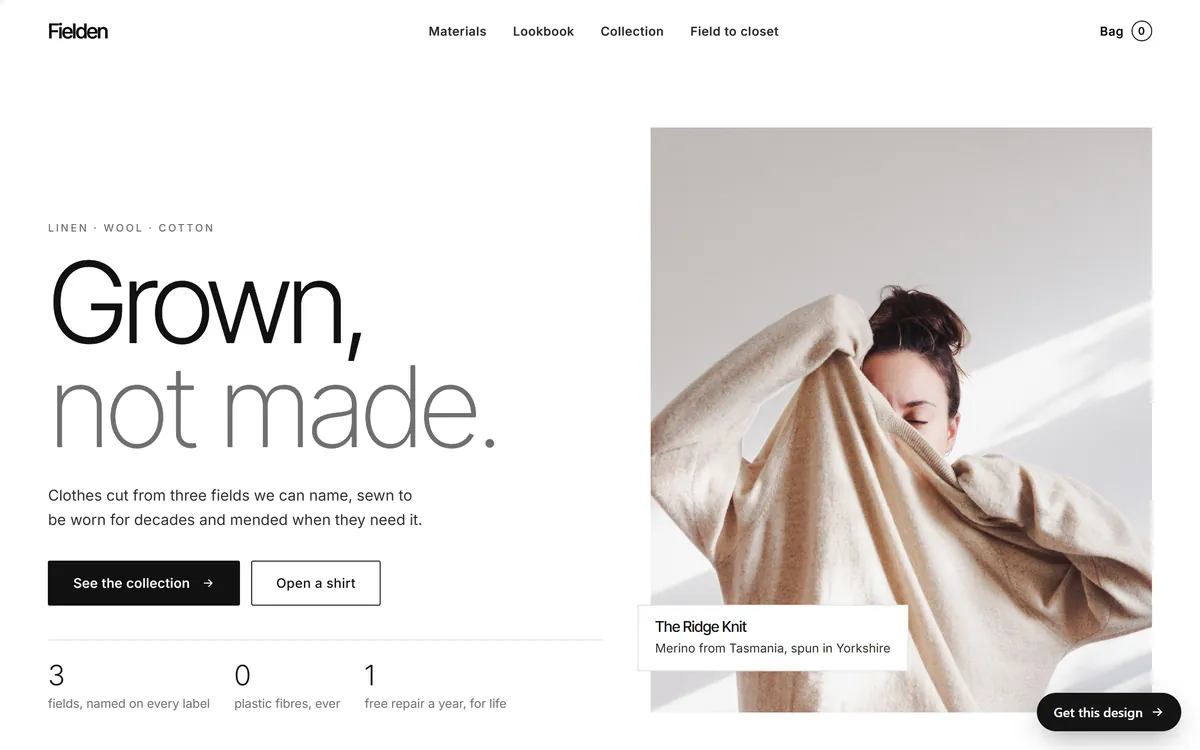
A person, a texture and a clear headline in one frame. The two buttons on the page tell the visitor what to do next.
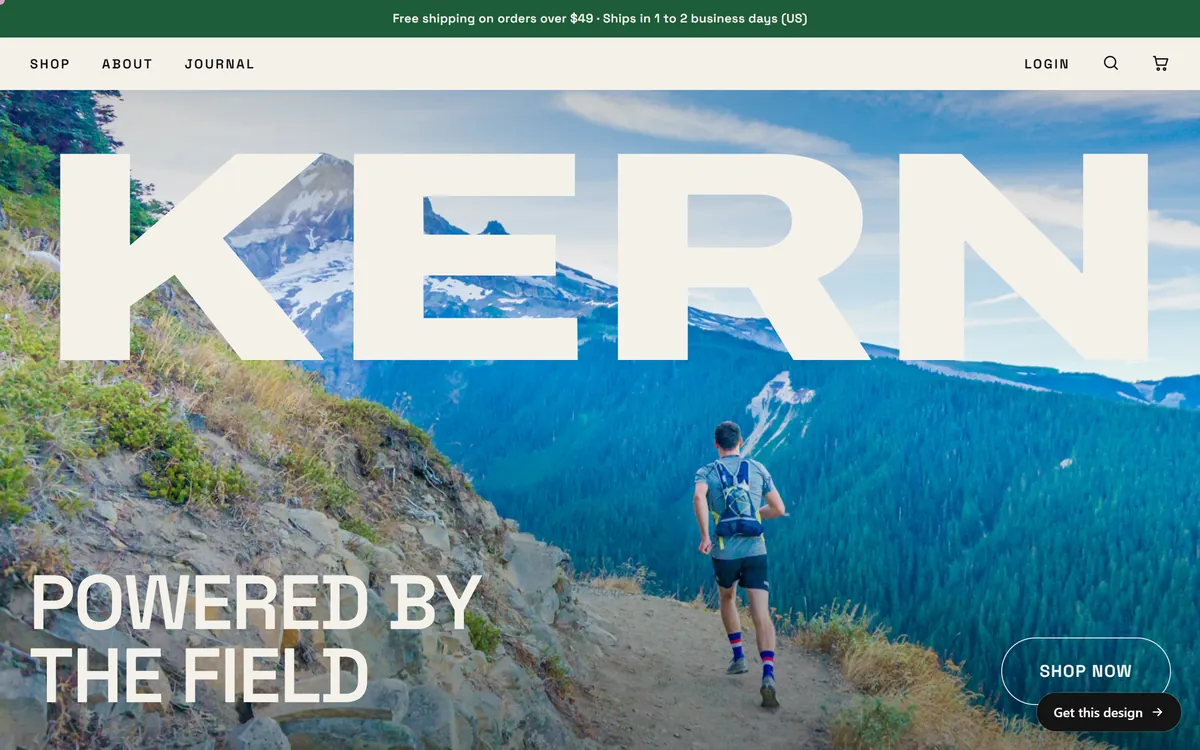
A runner on a mountain trail gives the products a setting, and the button under the picture is easy to find.
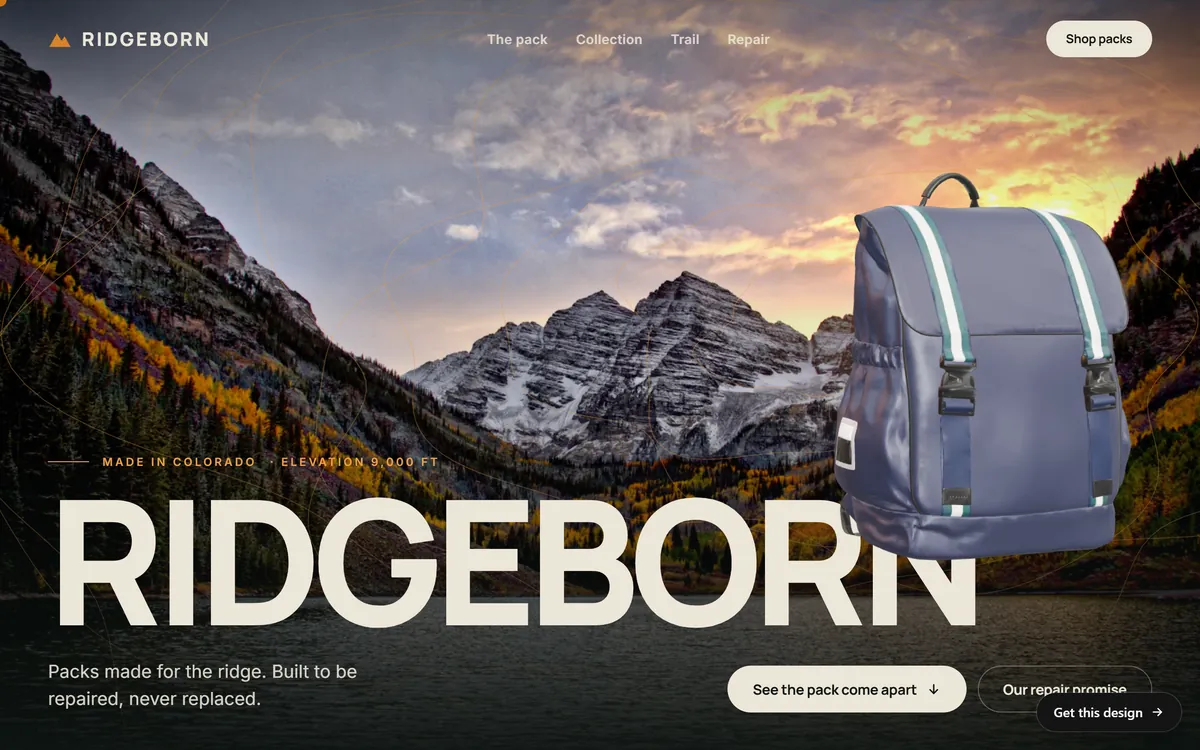
A mountain lake at dusk, a backpack and the maker's name in large letters, with a short line that explains the promise. The menu has a button for shopping.
Meta may offer optional enhancements, which it calls Advantage+ creative. Its standard enhancements can build variations of your picture and text for each viewer. Read what each option does, and decide whether you want it, before you accept the defaults.
Step 7: Check your tracking and publish
If you chose leads or sales, or you want to count what people do on your website, Meta needs a way to see it. That is done with a tracking tool placed on your website, such as the Meta Pixel. It is the owner's decision, and a later lesson on retargeting explains what it involves, including privacy. If you chose traffic, you can start without it and count results in other ways.
When you publish, Meta reviews your ads against its advertising standards before they run, so allow some time. If an ad is rejected, Ads Manager shows the reason. Fix it and send it again.
A quick check before you publish
- The objective matches the action you want.
- The location is your real service area.
- The language of the ad matches the language of the page.
- The preview looks right on both Facebook and Instagram.
- The button opens the right page, and that page works on a phone.
- The budget is an amount you chose on purpose.
Take two minutes to tap the button in the preview yourself. A broken link is one of the cheapest mistakes to avoid and one of the most expensive to make.
After you publish
- Leave it alone for a few days. Meta lists pausing an ad set, or changing its audience, creative or target result, as significant edits that can restart the learning phase.
- Answer fast. Ads on Facebook and Instagram bring comments and messages. A quick, friendly reply helps the person who wrote and everyone who is watching.
- Read the results against your goal. The lesson on how to know if your ads work shows which numbers to read.
- Change one thing at a time. A new picture first, then a new audience, never both at once.
Ads that start a conversation
Meta also sells ads that open a chat instead of a web page. It calls them click-to-message ads, and they can work across its messaging apps, including WhatsApp. If your customers prefer to write to you, this may fit your business. Availability depends on your country and your setup, so check the current options in Ads Manager.
Your first campaign and your website
Whatever the ad shows, the click needs a good landing place. On day 1 of a project you can send us your logo and photos in any format, and we build them into a site with texts written for your business, a mobile version and contact forms. Good photos then work twice, on your pages and in your ads. You can see how that looks in our designs.
Questions people ask
How do I create my first Facebook ad?
Open Meta Ads Manager, create a campaign, choose an objective, set your audience, places, budget and schedule, then create the ad with your picture, text and button. Check the preview and publish. The steps in this lesson follow that order.
Do I need a Facebook Page to run Instagram ads?
Not always. According to Meta, Instagram ads can run under a Facebook Page or under a connected Instagram professional account. The screens change, so check the current steps in Ads Manager.
What is the best objective for a small business?
The one closest to the action you want. Traffic fits sending people to a page, leads fits collecting contact details and sales fits purchases. Use leads or sales only when you can track those results.
How much should I spend on my first campaign?
Enough to produce a few results per day while Meta learns. Meta's guidance mentions funding about seven days of delivery. The lesson on how much to spend shows how to set a first budget from your own numbers.
What is the Meta learning phase?
It is the period when Meta's system is still figuring out who responds to your ad. It ends after roughly 50 results of the kind you chose. If an ad set is unlikely to reach that in a week, Ads Manager can mark it as learning limited.
What are special ad categories?
They are topics with extra rules: housing, employment, financial products and services, and social issues, elections or politics. You declare them when you create the campaign, and for the first three Meta limits how you can target in the United States.
What is the difference between boosting a post and running an ad from Ads Manager?
Boosting is a shortcut that promotes an existing post with a few choices. Ads Manager gives you the full set of choices: objective, audience, places, budget and creative. Beginners learn more from Ads Manager.
Why was my Facebook ad rejected?
Meta reviews ads against its advertising standards, and Ads Manager shows the reason for a rejection. Common causes are misleading claims, text that speaks to personal traits and ads in a special category that were not declared. Fix the problem and send the ad again.
Can I run Facebook and Instagram ads in Spanish?
Yes. Choose the language of your audience, write the ad in Spanish and send people to a page in Spanish. Write the Spanish version on its own, with the words your customers use.
Do I need the Meta Pixel?
Not to start a traffic campaign. If you want Meta to optimize for leads or sales on your website, or you want to count what visitors do, it needs a tracking tool such as the Pixel. Add it only if you want it, explain it in your privacy policy and ask for consent where the law requires.
Want a website that does all of this? Start your site