How to plan a month of posts in one hour
A plan turns random posting into a habit. Here is a one-hour method to fill a month, and how to schedule it.
Most small businesses do not stop posting because they run out of ideas. They stop because deciding what to post every morning is tiring. A plan fixes that. This lesson shows a one-hour method to fill a month, how to batch your work so you film once and post many times, and which free tools can post for you at the right time.
A plan saves time and nerves
When you decide day by day, every post starts with a blank screen. That is the slow part. When you plan a month at once, you decide once, and the rest of the month is just filming, writing and posting. A plan also keeps you steady, and steady posting is what makes a profile look alive.
A plan does not have to be fancy. A page in a notebook, a shared calendar or a simple spreadsheet is enough. What matters is that you sit down on a fixed day, at a fixed time, and do it.
Make three decisions first
- How many posts can you keep up? Count honestly. Two or three posts a week that you really make beat five that you drop after a month.
- Which networks? One or two, as you chose in the first lesson of this series. A plan for six networks will not survive the month.
- When is your planning hour? Pick a day near the end of each month, such as the last Friday afternoon, and put it in your calendar like an appointment with a customer.
The one-hour method
You will need your idea bank (the note with post ideas from the lesson on what to post), a calendar for the next month and a timer. Work in five steps:
- Mark the dates (ten minutes). Write on the calendar everything that already has a date: holidays your customers care about, local events, your own sales and launches, days you are closed and seasonal moments in your trade.
- Choose your themes (ten minutes). Pick three or four kinds of posts for the month, such as "teach," "show our work," "meet people" and "ask for action." These are your themes. They stop you from posting only one kind of thing.
- Fill the calendar (twenty minutes). Choose your posting days and give each one an idea from your bank. Put the dated posts in first, then spread the themes across the rest.
- Draft the captions (ten minutes). Write one line for each post: the first sentence and the next step. You can polish later. The point is that no day is empty.
- List what you need to film (ten minutes). Next to each post, write what photo or clip it needs. Group the posts that can be shot in the same place or at the same time.
At the end of the hour you have a full month, a shopping list for your camera and a list of captions waiting to be finished.
A sample month for a neighborhood café
To see how the pieces fit, imagine a café that posts three times a week. In week one, it marks a local street fair on the calendar and plans a post about its stand, a how-to on brewing a good cup at home and a thank-you to the farm that supplies its eggs. In week two, it shows the morning bake, introduces the person who makes it and shares a customer photo. In week three, it announces a new seasonal drink and posts its holiday hours. In week four, it answers the question customers ask most and reminds people how to order for the weekend.
That is twelve posts, four themes and one planning hour. Your list will differ, but the shape is the same.
Plan around the dates that matter
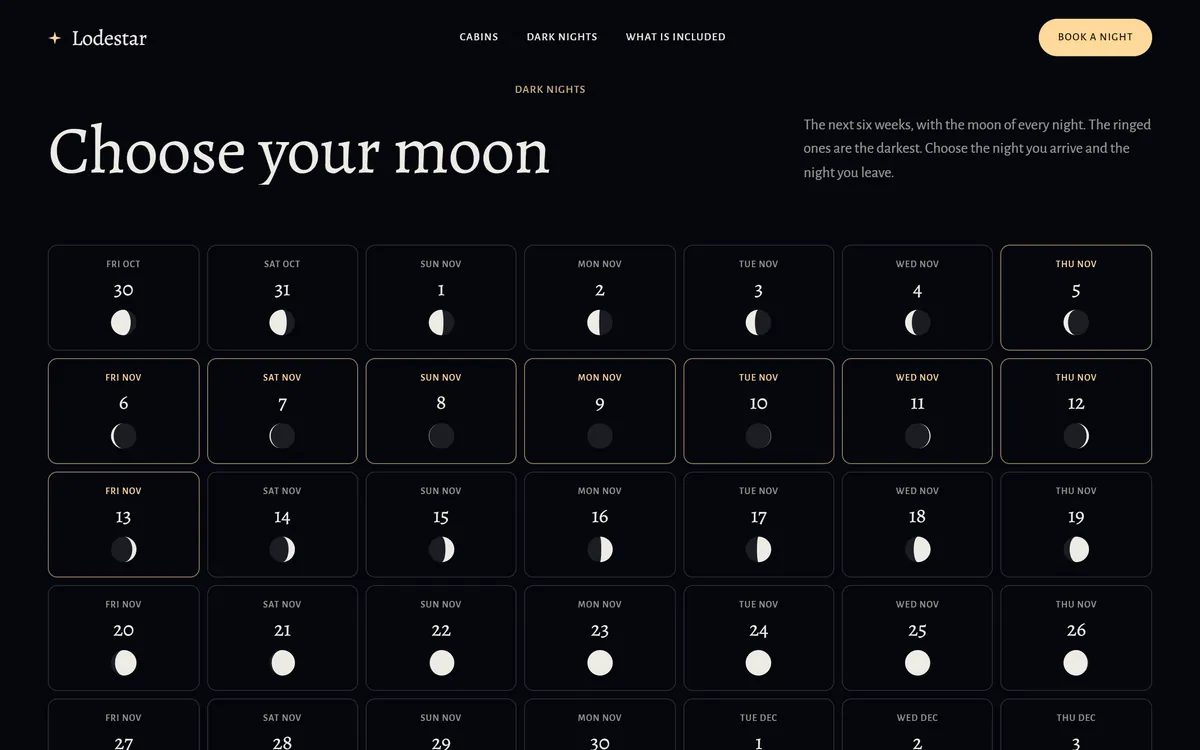
Your customers live by a calendar: seasons, school terms, holidays, weather, paydays and local events. Build yours around them, and the ideas almost write themselves.
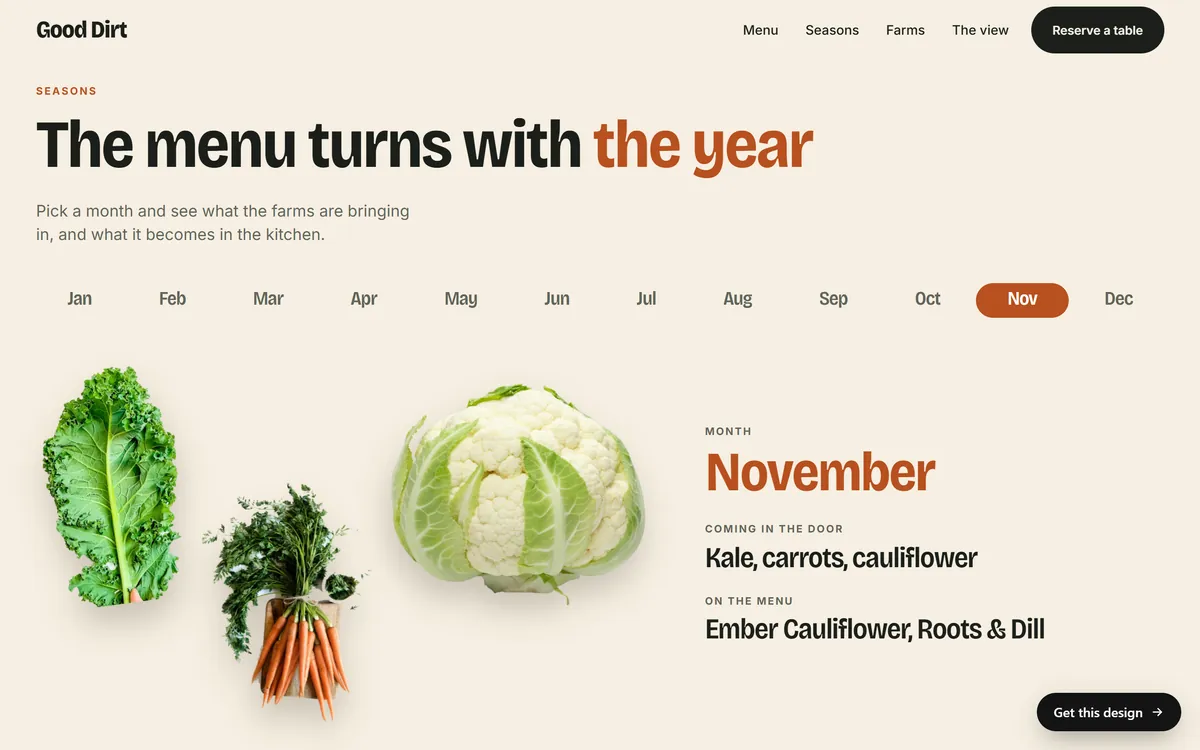
- Seasons. What changes in your business from month to month? A restaurant changes its menu, a landscaper changes its jobs, a shop changes its stock.
- Holidays and cultural dates. Mark the ones that matter to your customers, including those from different cultures and languages, when it feels natural and true to you.
- Local events. Fairs, markets, school events and sports seasons give you topics and tags.
- Your own dates. New products, anniversaries, sales, closures, classes and deadlines for ordering.
- Slow weeks. Plan an offer, a how-to or a customer story for them, so the quiet weeks do not go silent.
Use themes for the days of the week
If you still stare at the calendar, give each posting day a theme. For example:
- Monday: a tip or a how-to.
- Wednesday: behind the scenes or a team member.
- Friday: a customer story, a product or an offer.
Customers learn to expect something on those days, and you never ask "what do I post?" again. Change the themes when you get bored or when you see what your customers like.
Batch your work: film once, post many times
Batching means doing the same kind of task in one sitting. It is the biggest time saver in this lesson.
- One filming session. Pick a day with good light. Shoot all the photos and clips from your list, in the same place or the same clothes if that helps. Film a little extra of everything.
- One writing session. Finish all the captions together, while you are in the writing mood.
- One editing session. Crop the photos, trim the clips and add the text, then save the finished files in a folder named for the month.
An afternoon of batching can cover two or three weeks. When posting day comes, everything is ready, and you only press a button.
A calendar template you can copy
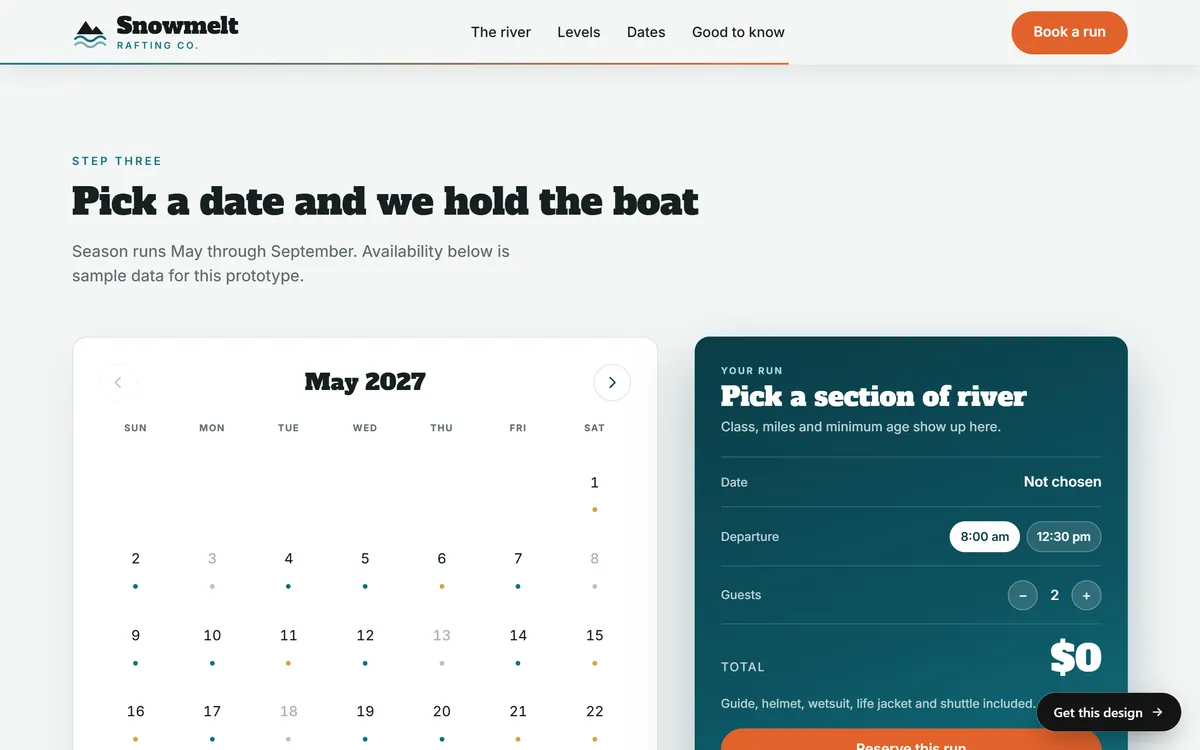
A simple table or list is enough. Give each post a row with these columns:
- Date and network. When it goes live and where.
- Theme and idea. Which kind of post, and the one-line idea.
- What to shoot. The photo or clip you need.
- Caption. A draft, then the final text.
- Link. The page of your website the post points to, if any.
- Status. Idea, shot, edited, scheduled, posted.
The status column is the most useful. At a glance, you see what is stuck.
Free tools that can post for you
You can always post by hand, with a reminder on your phone. If you prefer to schedule, start with the tools the platforms give you, because they cost nothing to start. Features change often, so check each platform's help page for the current steps.
- Meta Business Suite. Meta describes it as a free tool to manage Facebook and Instagram, and it lets you schedule posts for both. On a computer, you work from a calendar and click a date to create a post for Facebook, Instagram or both. In the mobile app, you start a post and choose to schedule it for later. Instagram posts need a photo or video attached. You can edit, reschedule, duplicate, delete or move a scheduled post back to draft.
- LinkedIn Pages. People with the right role on a company Page can schedule posts ahead. Some kinds of posts cannot be scheduled. Once a post is queued, the wording is locked, but you can change the time or remove it before it goes live.
- Other networks. Some others, such as TikTok and YouTube, may offer their own way to schedule a video. Look for a schedule or calendar option when you upload, and check the current rules in the help pages.
There are also scheduling tools from other companies, and some have free plans. Their limits change often, so compare before you commit, and do not pay for anything until you know you will use it. Whatever you choose, ask three questions. Does it work for the networks I use? Can I see my whole month on a calendar? Can I edit or cancel a post easily? If the answer to all three is yes, it is good enough.
Scheduling is not a substitute for being there. Check your accounts every day for comments and messages, and answer them. The next lessons cover how.
Leave room for the unplanned
Life happens: a customer sends a great photo, a local event pops up, something goes wrong or something big happens in the news. Leave a few empty slots each month and be ready to move or pause a scheduled post. If a post no longer fits the day, edit it or take it down. A plan helps you, but it does not own you.
What to do when you fall behind
You will miss a day sometimes. Do not try to catch up by posting five times at once. Skip the missed post, or move it to the next open slot, and carry on. If you fall behind for a whole week, use your idea bank to post something simple, such as a thank-you or a photo from your day, and get back into the rhythm. A small post today is worth more than a perfect one that never goes out.
Review the plan at the end of the month
When the month ends, spend ten minutes looking back. Which posts got questions, messages or visits? Which ones were easy to make? Which ones did you skip? Keep what worked, drop what did not and use what you learned in the next planning hour. The lesson on measuring what works shows which numbers to check.
Plan your website with your posts
Your calendar can include your website, too. If a post says "book this week," the booking page should be ready before the post goes live. If you announce new hours, update them on the site on the same day. When we build a site, a mobile version and contact forms are included, so the pages your posts point to work on a phone. See our designs to find the look that fits your kind of business.
Questions people ask
How do I plan a month of social media posts?
Set aside one hour. Mark the dates that matter, choose three or four themes, fill your posting days with ideas, draft the captions and list what to shoot. Then film, edit and schedule in batches.
How far ahead should I schedule posts?
There is no official answer. One to four weeks ahead is common. Schedule only as far as you can keep the plan flexible, and leave room for news and customer moments.
What is a content calendar?
It is a calendar that shows what you will post, where and when. It can be a notebook page, a shared calendar or a spreadsheet. It may also show the idea, the caption, the link and the status of each post.
What are free tools to schedule social media posts?
Meta Business Suite lets you schedule posts for Facebook and Instagram at no cost, and LinkedIn lets people with the right role on a Page schedule posts. Other networks may have their own options. Check each platform's help page for current steps.
How many posts a week should I plan?
Plan the number you can keep up for months. For many small businesses that means two or three posts a week. You can raise it later if it feels easy.
What is content batching?
Batching means doing one kind of task for many posts in one sitting: one filming session, one writing session and one editing session. It saves time because you do not set up again for every post.
Does scheduling posts look fake?
No. Viewers see the post, not how you made it. What matters is that you are present to answer comments and messages, and that the content is real.
What if something happens and a scheduled post feels wrong?
Edit it, move it or take it down. In Meta Business Suite you can edit, reschedule or move a scheduled post back to draft. On LinkedIn Pages you can change the time or remove a queued post.
Should I plan holidays?
Yes, the ones your customers care about. Mark them on the calendar a few weeks ahead so you have time to prepare something that feels sincere.
How do I avoid running out of ideas?
Keep an idea bank in a note on your phone, and add to it all month. The lesson with thirty post ideas gives you a first list.
Want a website that does all of this? Start your site