How to set up a professional email with your domain
An address that ends in your own domain looks professional and stays with your business. Here is how to set it up and keep it out of spam.
A professional email address ends with your own domain, like hello@yourbusiness.com, instead of a free address like yourbusiness@gmail.com. It looks more trustworthy, it stays with the business when people come and go, and you control it. This lesson explains your options, what they cost in 2026, how to set up email step by step and how to keep your messages out of the spam folder.
Why a professional email address matters
- Trust. Your domain appears on every message you send. A customer who sees your business name after the @ can tell that a real company wrote to them, and some customers read a free address as a sign of a very small or very new operation.
- Branding. Your email, your website and your business cards all say the same name.
- Continuity. An address like info@yourbusiness.com belongs to the business. When someone leaves, you move the mailbox to someone else, and nothing changes for customers.
- Control. You decide who has an address, you can close one in a minute and you can add another when you hire.
- Delivery. Mail from your own authenticated domain is easier for receiving servers to trust than mail from a form or a free account pretending to be you.
- Separation. Business messages stay apart from personal ones, which makes it easier to find things and to hand them over.
What a professional email is made of
Three things work together. Your domain gives the name, the part after the @. An email service provides the mailboxes, the places where messages are stored and sent from. And DNS records, small settings at your domain, tell the world where your mail should go. You also need an app or a web page to read your messages, and every provider supplies one.
Four ways to get email with your domain
1. A business email suite
Google Workspace and Microsoft 365 are two of the most widely used. They give you mailboxes with plenty of storage, calendars, shared documents, strong spam filtering, apps for every phone and computer, and support. In 2026, the entry plans of both are listed at about $7 per user per month on an annual commitment, and monthly billing costs more. Prices change, so check the current ones. This is the most complete and the most dependable option for a business.
2. Email included with your hosting
Many hosting plans include a number of mailboxes at no extra charge. It is the cheapest route, and it can work for a few addresses. The drawbacks are weaker spam filtering, less storage, fewer apps and a link to your hosting: if you move the site, you have to move the email too, and a problem with the host can stop your mail.
3. A dedicated email provider
Several smaller companies sell only email, some with a focus on privacy or on simple pricing. They can be a good fit if you want email separate from your hosting without the full suite of a large provider. Check the reputation, the support and how easily you can move out.
4. Forwarding only
Your registrar or host can forward hello@yourbusiness.com to a free Gmail account. It costs nothing and takes minutes. But replies come from your Gmail address unless you set up sending carefully, and forwarded mail can run into delivery problems. Treat forwarding as a starting point, not as a permanent solution.
How to set up email with your domain, step by step
- Decide on the addresses. Start with two or three, as the section below suggests.
- Choose a provider and sign up. Enter your domain when the provider asks for it.
- Prove you own the domain. The provider gives you a code, usually a TXT record. Add it where your domain's DNS is managed, which is at your registrar, your host or a separate DNS service.
- Add the MX records. These tell the world to deliver your mail to the new provider. Copy them exactly, and remove the old ones. Do not touch the records that make your website work.
- Create the mailboxes. Give each person a strong, unique password and turn on two-step verification.
- Add SPF, DKIM and DMARC. The next section explains them. Your provider shows you the exact values.
- Test. Send messages to a Gmail, an Outlook and a Yahoo address, and reply from each. Check that they land in the inbox and not in spam.
- Set up your phone and computer. Use the provider's app, or add the account to your usual mail app.
- Move your old mail, if you need it. Providers offer tools to import messages from a previous account.
- Update every place that shows your email. Your website, contact forms, Google Business Profile, invoices, business cards and social profiles.
Before you change any DNS record, take a screenshot or copy of the existing ones. If something goes wrong, you can put them back.
Which addresses to create
- A general address, like hello@ or info@, for new customers.
- A personal address for each person, like maria@ or james@, so replies come from a person.
- Role addresses, like sales@, support@ or bookings@, which can be aliases or group addresses that reach one or more people.
Avoid noreply@ for anything customers might answer, because people want to reply. Avoid numbers and odd spellings, and do not share one login among several people. Start small: it is easy to add more later.
A simple, professional email signature
Your signature works like a small business card at the end of every message. Keep it short: your name, your role, the business name, a phone number and your website. Add your street address if customers visit you. Use one font, one color and no more than one small logo. Skip quotes, heavy images and long legal text unless you must have it.
When someone joins or leaves the business
A business mailbox holds invoices, quotes and the reset links for many other accounts, so treat it with care. When a new person joins, create their mailbox on the first day and add them to the role addresses they need. When someone leaves, do not delete the mailbox at once. Change the password, forward their mail to the person who takes over, set an automatic reply for a while and remove their access to your other tools. That way, no customer message falls into the gap.
SPF, DKIM and DMARC in plain words
These three settings prove that mail from your domain really comes from you. Without them, receiving servers cannot tell your messages from fakes, and your mail is more likely to go to spam.
- SPF is a list, saved in your DNS, of the services allowed to send mail for your domain.
- DKIM adds a digital signature to each message, which shows that the message was not changed on the way.
- DMARC tells receiving servers what to do with mail that fails those checks, and it sends you reports about who is using your domain.
Since 2024, Gmail and Yahoo have required senders of large volumes, more than 5,000 messages a day, to use all three, and Microsoft's Outlook.com followed in 2025. You will probably never send that much, but the same checks help your everyday mail reach the inbox. Your provider gives you the exact records to paste. A safe way to start DMARC is a monitoring policy, which only reports problems, and then tighten it once everything passes.
How to keep your email out of spam
- Set up SPF, DKIM and DMARC before you send anything important.
- Send from your own domain, through a proper mailbox or mail service. A website form that sends from a random server address often lands in spam.
- Write for people. Avoid capital letters, tricks, too many links and promises that sound too good.
- Never buy email lists. Write to people who asked to hear from you.
- Warm up a new domain. Start by writing to people who know you and will answer, before you send to many at once.
- Keep your list clean, and honor unsubscribe requests right away.
Where your address should appear
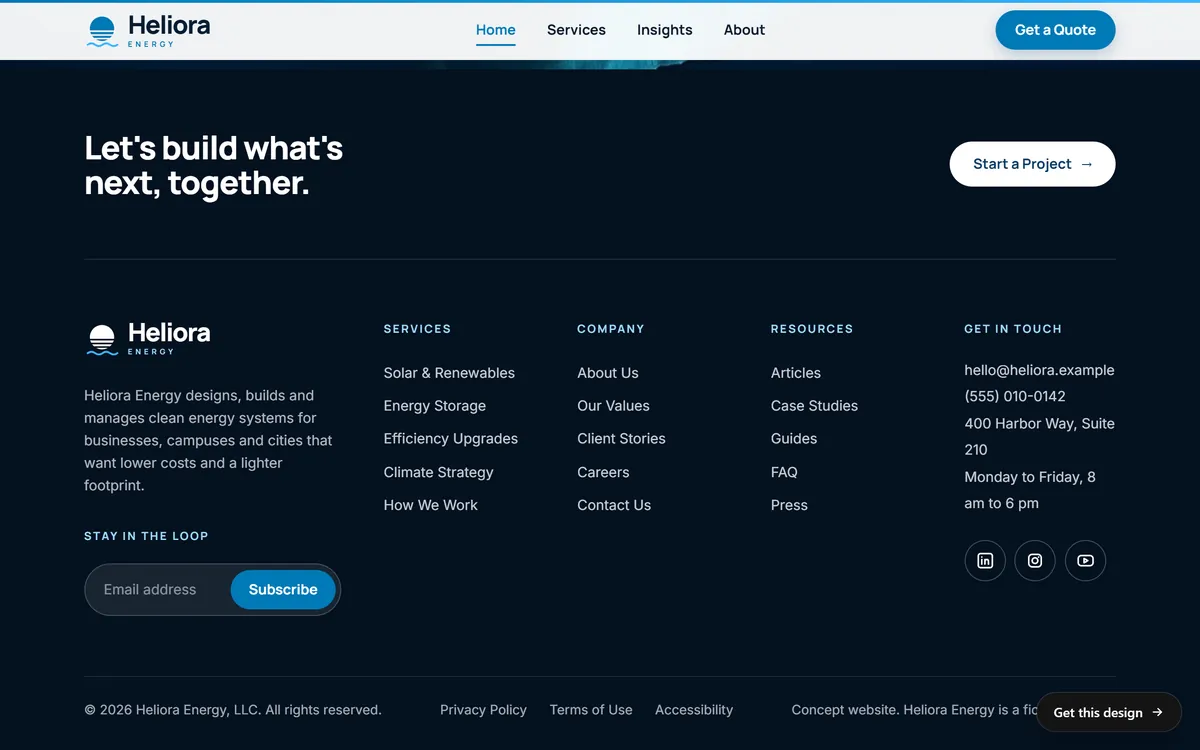
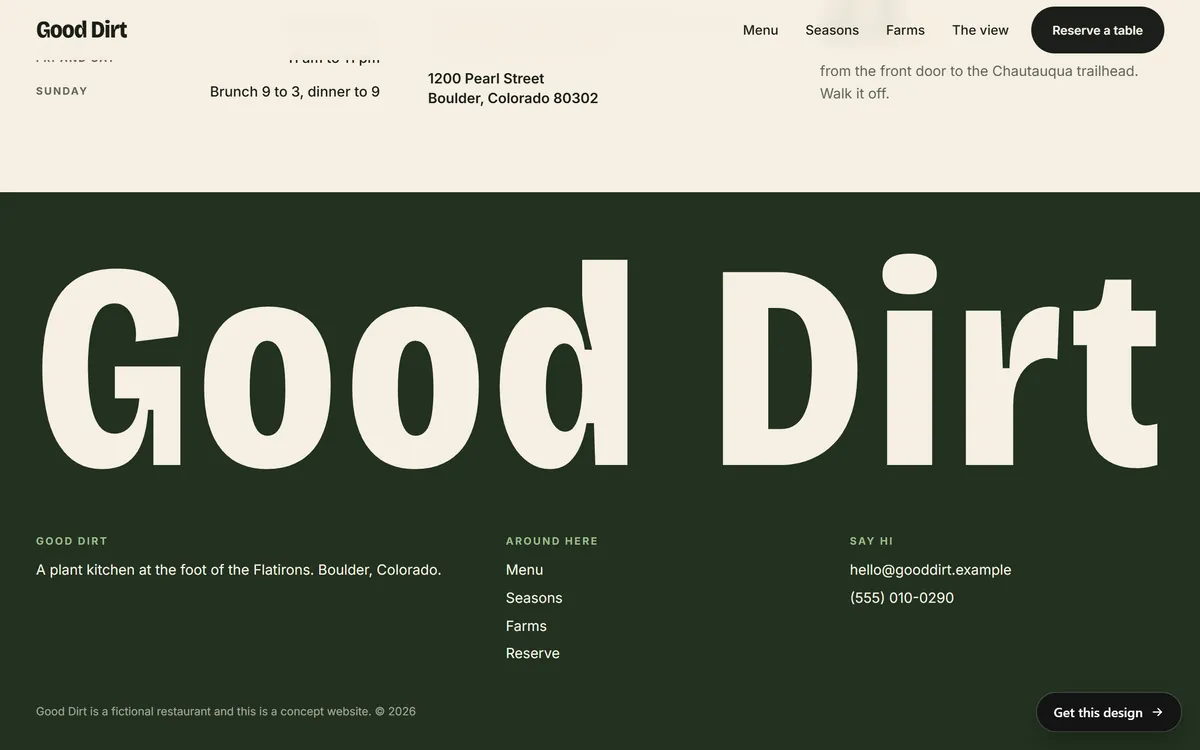
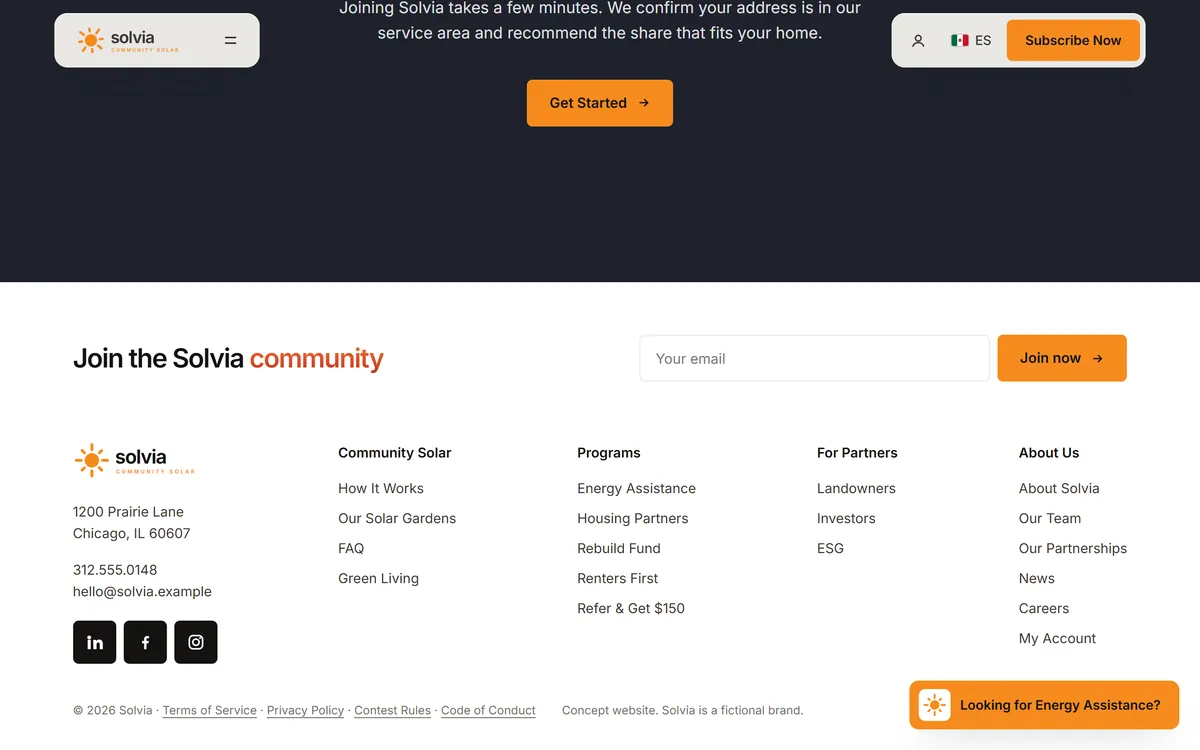
Once you have the address, use it everywhere customers look for a way to reach you: the footer and the contact page of your website, your forms, your Google Business Profile, your invoices and your email signature. Our concept websites show how natural it looks: a general address like hello@, with a phone number and a street address beside it.
Keep a copy of important mail
Your provider stores your messages, but a mistake, a hacked account or a canceled subscription can lose them. Many providers include an export or backup tool. Learn where it is, and save a copy of the most important mailboxes from time to time, especially invoices, contracts and customer records. Store that copy somewhere other than the mail account itself.
Email mistakes to avoid
- Using a free address for the business. It works at the start, and it is easy to outgrow.
- Tying email to one person. If a developer or a relative created the account, you may lose it when they leave.
- Forgetting the MX records when you move hosting. Your website moves and your email silently stops arriving. Always check the MX records after a move.
- Deleting records you do not understand. Copy the existing DNS records before you change anything.
- Skipping two-step verification. Stolen email passwords are one of the most common ways accounts are taken over.
- Sharing one password. Give everyone their own login.
- Relying on forwarding forever. It is a first step, not the finished setup.
Your email and your website
Every site we build includes contact forms, and the messages need an address to land in. Use one on your own domain. If you add our monthly email marketing service later, a professional address on your domain is the right base for it. When you are ready, you can start your site.
Questions people ask
How do I get a professional email address with my own domain?
Register a domain, choose an email provider, prove you own the domain, add the MX records the provider gives you and create your mailboxes. Then set up SPF, DKIM and DMARC and test.
Can I get a free business email with my own domain?
You can forward your domain's email to a free account, and many hosting plans include mailboxes. Truly free full mailboxes are rare, and a paid suite is more dependable for a business.
Is a free email address good enough for a business?
A free address, from Gmail or any other free provider, works at the start. It shows no business name, though, and it belongs to one person. An address on your own domain looks more professional and stays with the business.
How much does business email cost?
In 2026, the entry plans of Google Workspace and Microsoft 365 are listed at about $7 per user per month with an annual commitment, and more with monthly billing. Email that comes with hosting costs less, with fewer features.
What is the difference between email forwarding and a mailbox?
Forwarding passes incoming mail to another address and stores nothing. A mailbox stores your messages and lets you send as your domain. A mailbox is the complete solution.
Do I need web hosting to have email with my domain?
No. You need a domain and an email service. Many businesses keep their website at one company and their email at another.
Can I use my domain email in Gmail or Outlook?
Yes. A provider's own app is the simplest, and you can also add the account to Gmail, Outlook or Apple Mail with the settings your provider supplies.
What is an MX record?
It is a DNS setting that tells the internet which servers receive mail for your domain. When you change email provider, you change the MX records.
Why do my emails go to spam?
Common causes are missing SPF, DKIM or DMARC records, sending from a server that is not authorized, a poor sender reputation or a message that looks like spam. Fix the setup first, then the writing.
What should my business email address be?
Use a simple address on your domain, like hello@ or info@ for the business and the first name of each person. Avoid numbers, long names and noreply@ for customer messages.
Want a website that does all of this? Start your site